How to Set Up a Windows 11 Mobile Hotspot in India
A Windows mobile hotspot lets your laptop share its internet connection with a phone or another nearby device. It can be useful in an Indian hostel with Ethernet access, a home office with a wired connection, or a temporary workspace where you need to connect a second device. The laptop becomes the local access point; […]

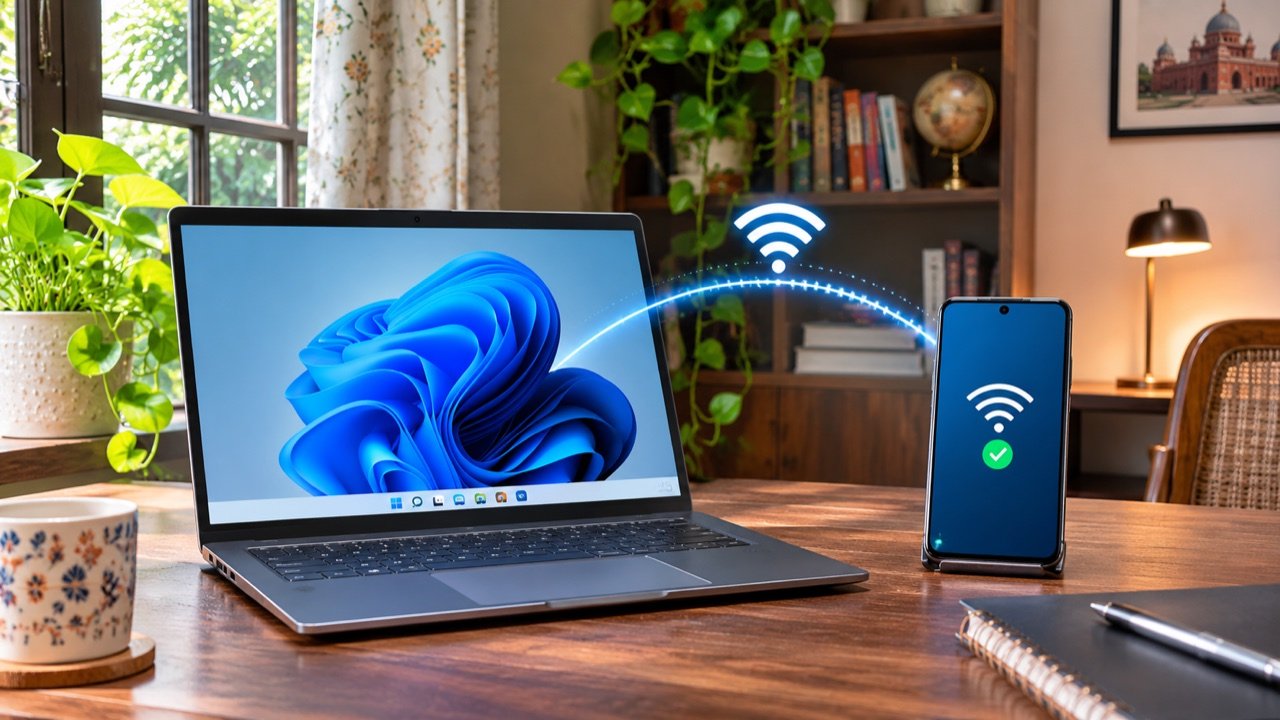
A Windows mobile hotspot lets your laptop share its internet connection with a phone or another nearby device. It can be useful in an Indian hostel with Ethernet access, a home office with a wired connection, or a temporary workspace where you need to connect a second device. The laptop becomes the local access point; it does not create free internet or bypass the rules of the original network.
This guide focuses on sharing from a Windows 11 PC to a phone. That is different from switching on your phone’s personal hotspot to connect the laptop. Before starting, check which device already has working internet, whether you have permission to share it, and whether that connection has a data allowance. Those three checks prevent most confusing setup attempts.
Check the connection before enabling the hotspot
Open a normal website on the laptop first. If the laptop itself cannot load a page, troubleshoot its internet connection before changing hotspot settings. A connected Wi-Fi symbol only confirms that the computer joined a network; it does not guarantee that the network can reach the internet. Hotel and campus networks may also require a browser sign-in.
If your laptop uses Ethernet, confirm that the cable is connected and the wired connection works. If it uses Wi-Fi, move it somewhere with a stable signal. Some hardware and network configurations handle sharing better than others, so a short test is more useful than assuming every laptop will behave identically. Keep the laptop plugged in for a long session.
Microsoft’s Windows mobile hotspot instructions describe the available connection choices. Menu wording can vary with Windows updates and the wireless adapter. For a first attempt, use the built-in Windows controls rather than installing an unfamiliar hotspot utility that requests extra permissions.
Set up a mobile hotspot in Windows 11
- Open Settings and select Network & internet.
- Open Mobile hotspot.
- Under Share my internet connection from, choose the connection that currently provides internet to the laptop.
- Choose Wi-Fi as the sharing method when the option is available.
- Review the network properties and edit the hotspot name and password.
- Choose a supported network band if Windows offers that setting.
- Turn on Mobile hotspot.
- On your phone, open Wi-Fi settings, select the new network and enter its password.
Use a network name that you can recognise without revealing your full name, room number or telephone number. Choose a password that is different from your laptop login password. If you are sharing it with someone temporarily, tell them the hotspot password only; they do not need your Microsoft account details or access to your computer.
Test that the phone really uses the shared connection
After joining the hotspot, open a fresh page on the phone. For a clearer test, temporarily switch off mobile data on the phone while leaving Wi-Fi on. That prevents the phone from quietly falling back to its SIM connection and making a broken hotspot appear successful. Turn mobile data back on afterwards if you normally rely on it outside Wi-Fi coverage.
Test an ordinary webpage before trying a large download or video meeting. If a browser page loads, test the app you actually need. A network may permit normal browsing while restricting some work apps, streaming services or calling features. Record which activity fails instead of describing the entire connection as broken.
For voice calls in a weak-signal room, sharing internet and enabling carrier Wi-Fi calling are separate steps. Our Wi-Fi calling setup guide for India explains the phone-side checks. A working hotspot does not guarantee that a particular operator or device supports calls over that connection.
Choose a Wi-Fi band for the situation
If both devices support the available higher-frequency band and sit close together, that can be a reasonable option to test. If the phone cannot see the hotspot or the connection struggles through walls, try 2.4 GHz when Windows offers it. Compatibility is more important than choosing a setting simply because its number is higher.
Change one option at a time. For example, switch the band, reconnect the phone and repeat the same short test in the same location. Changing the name, password, band and source connection together makes it harder to identify what solved the problem. Keep a note of the working setup if this is a shared household laptop.
Protect a limited data allowance
Imagine a student using a mobile broadband connection on the laptop and sharing it with a second phone for a lecture. The lecture, Windows downloads, phone app updates and photo backups can all compete for that same connection. The hotspot does not add another allowance. Check the provider’s usage counter before and after the session to understand the combined demand.
A phone often treats a Wi-Fi hotspot like any other Wi-Fi network. Apps that wait for Wi-Fi may therefore begin downloads immediately. Review the phone’s update and backup controls before joining a limited connection. If the device provides a metered-network option for that Wi-Fi network, consider using it, but still inspect individual apps rather than relying on one switch.
Download essential travel maps over a suitable connection before leaving home. The Google Maps offline guide explains that workflow. Preparing a few predictable downloads in advance is often easier than repeatedly interrupting background transfers during a busy work session.
Troubleshoot common hotspot problems
| Problem | First check | Next test |
|---|---|---|
| Phone cannot see the network | Confirm hotspot is on | Move closer and try a compatible band |
| Password is rejected | Read the current password in Windows | Forget the saved network and reconnect |
| Connected without internet | Test browsing on the laptop | Verify the selected source connection |
| Connection stops during breaks | Check whether the laptop sleeps | Review power settings for the session |
| Only one app fails | Test a second app | Check that app and the network policy |
The hotspot switch will not stay on
Restart the computer and try again after confirming that its normal internet connection works. Check Windows Update and the laptop manufacturer’s official support resources for relevant wireless adapter updates. Avoid downloading a driver from a search advertisement or a generic driver bundle. If the computer belongs to an employer or college, ask its administrator before changing managed networking settings.
The phone connects but browsing fails
Recheck the source connection selected in Windows. A laptop may have several adapters listed even though only one has internet access. Disconnect the phone, switch the hotspot off and on, and reconnect once the upstream connection is working. If a captive portal is involved, complete its normal sign-in on the laptop and respect any restrictions on sharing.
The connection is slow
Compare browsing on the laptop and phone at the same time. If both are slow, the shared source connection is the likely bottleneck. If only the phone struggles, test it closer to the laptop. Pause nonessential transfers and disconnect unused clients. A hotspot cannot make a slow upstream connection faster, and a single speed-test result is less useful than a stable real-world call or download.
Use a hotspot responsibly on shared networks
Campus, office and hotel networks can have rules about personal access points. Check those rules before sharing. Do not disable security software, change corporate VPN settings or work around access restrictions just to make a phone connect. A personal hotspot is a convenience feature, not permission to redistribute someone else’s connection.
Keep the password private, turn the hotspot off after use and review any connected-device information Windows displays. If you shared the password for a one-time visit, change it before the next session. On a shared PC, agree who can enable sharing and what data budget applies so another person does not discover unexpected usage later.
Frequently asked questions
Does a Windows hotspot work without internet?
A local wireless network and internet access are different things. For the browsing workflow in this guide, the laptop needs a working source connection. Turning on a hotspot alone does not provide access to websites, recharge a SIM or create an internet subscription.
Can I close the laptop lid?
Closing the lid may put the laptop to sleep, depending on its settings. Test the behaviour before relying on it for a meeting. Keep the computer on a ventilated surface and use the normal power controls; do not leave a running laptop inside a bag to maintain a connection.
Should I use this instead of a router?
A laptop hotspot is useful for temporary sharing. For several people who need reliable access throughout the day, a suitable router and a stable connection are usually easier to manage. The laptop must remain available, powered and connected whenever other devices depend on it.
What should I check before an online class?
Connect early, open the class platform, check audio, and keep the laptop powered. Stop unnecessary downloads on both devices. Have a normal alternative connection ready if the class is important. Testing the actual classroom app is more helpful than assuming a successful homepage load proves everything will work.
Tags:
More from TechLein Editorial Team
View all articles →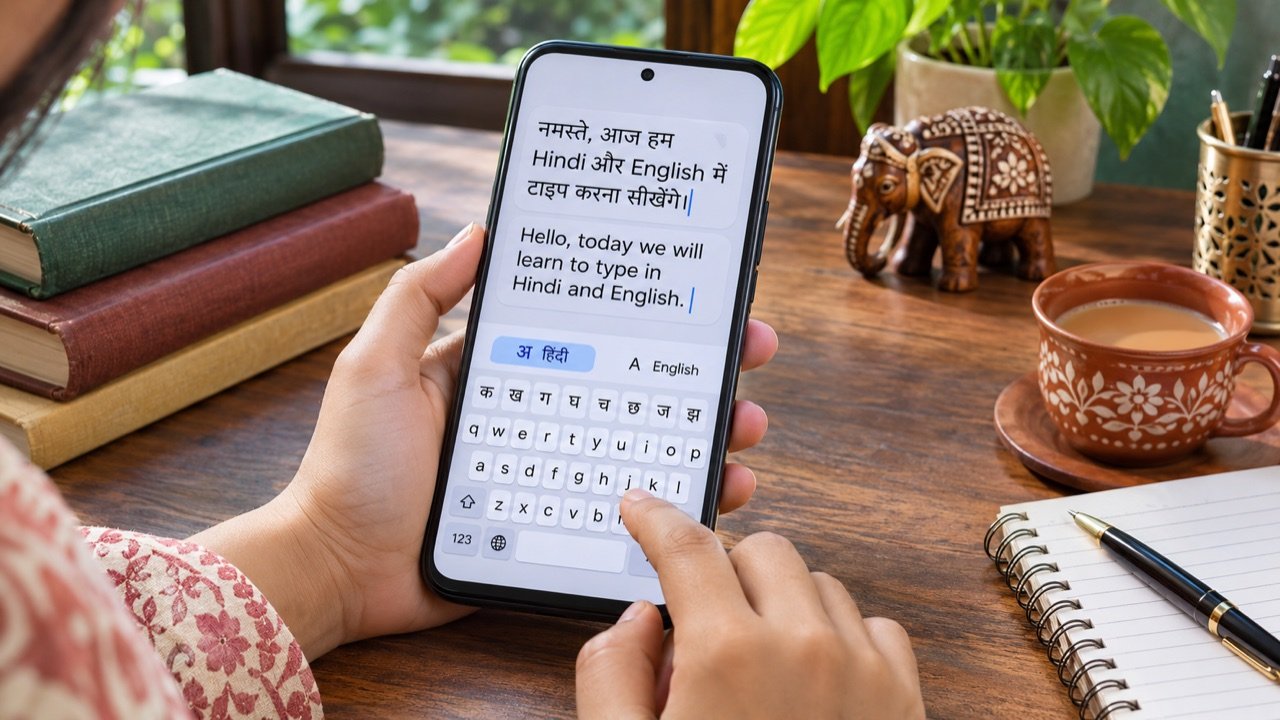
How to Type in Hindi on Android with Gboard: A Practical India Guide
Type Hindi while keeping your phone menus in English To type Hindi on an Android phone with Gboard, open a text field, tap the keyboard’s settings icon, choose Languages → Add keyboard, and select Hindi. Pick the available layout that suits how you want to type, then tap Done. Hold the space bar to switch […]

How to Use Android Data Saver in India Without Missing Important Alerts
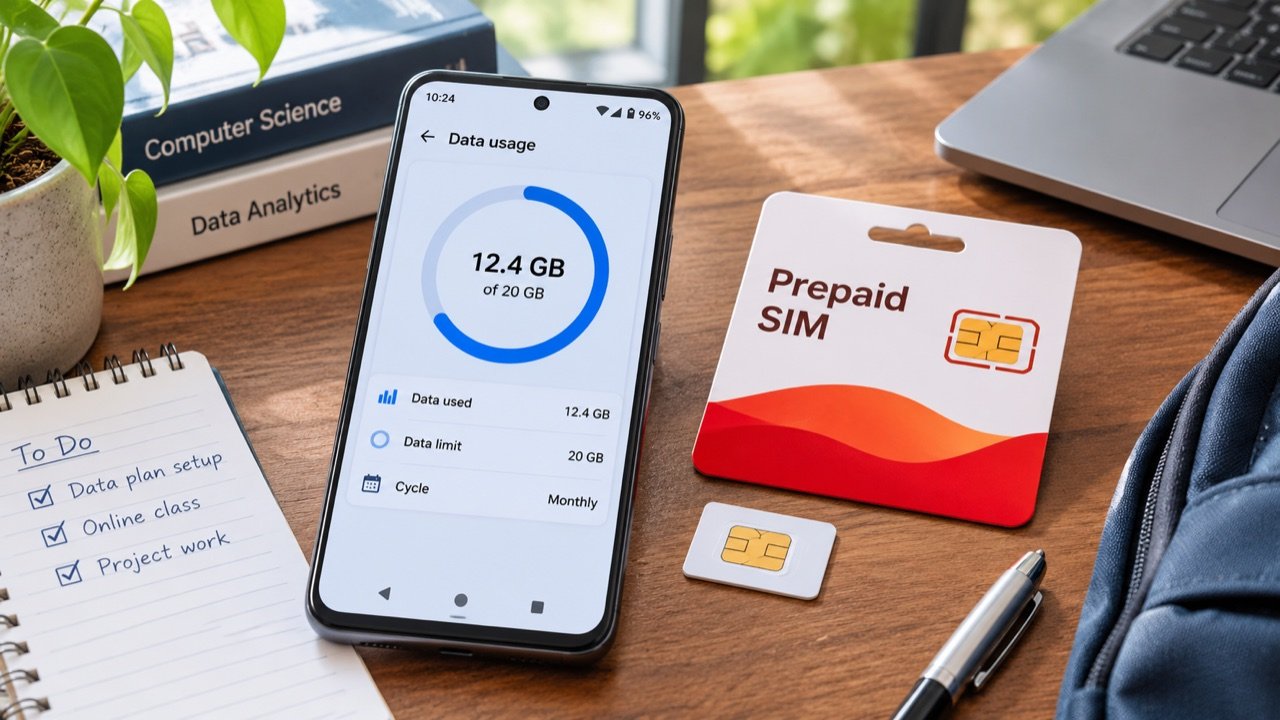
Make your daily mobile data allowance last longer To reduce mobile data use on an Android phone in India, first check which apps consumed your allowance, then enable Data Saver and adjust the highest-usage apps individually. On phones with Google’s standard Android menus, the setting is under Settings → Network & internet → Data Saver. […]
How to Enable Wi-Fi Calling in India on Android and iPhone
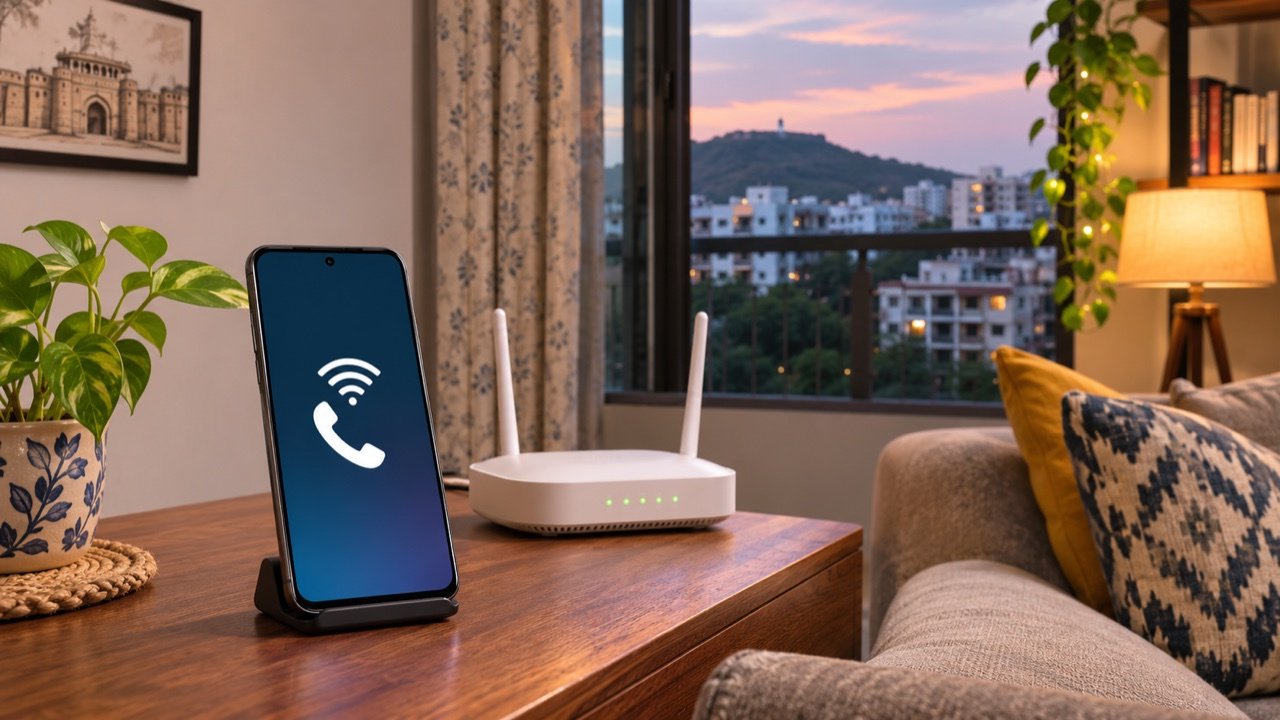
How to turn on Wi-Fi calling in India To enable Wi-Fi calling in India, connect your phone to a working Wi-Fi network, open its mobile or SIM settings, and turn on Wi-Fi Calling for the number you want to use. On iPhone, start in Settings → Mobile Service or Cellular and select the relevant line. […]