How to Use Android Data Saver in India Without Missing Important Alerts
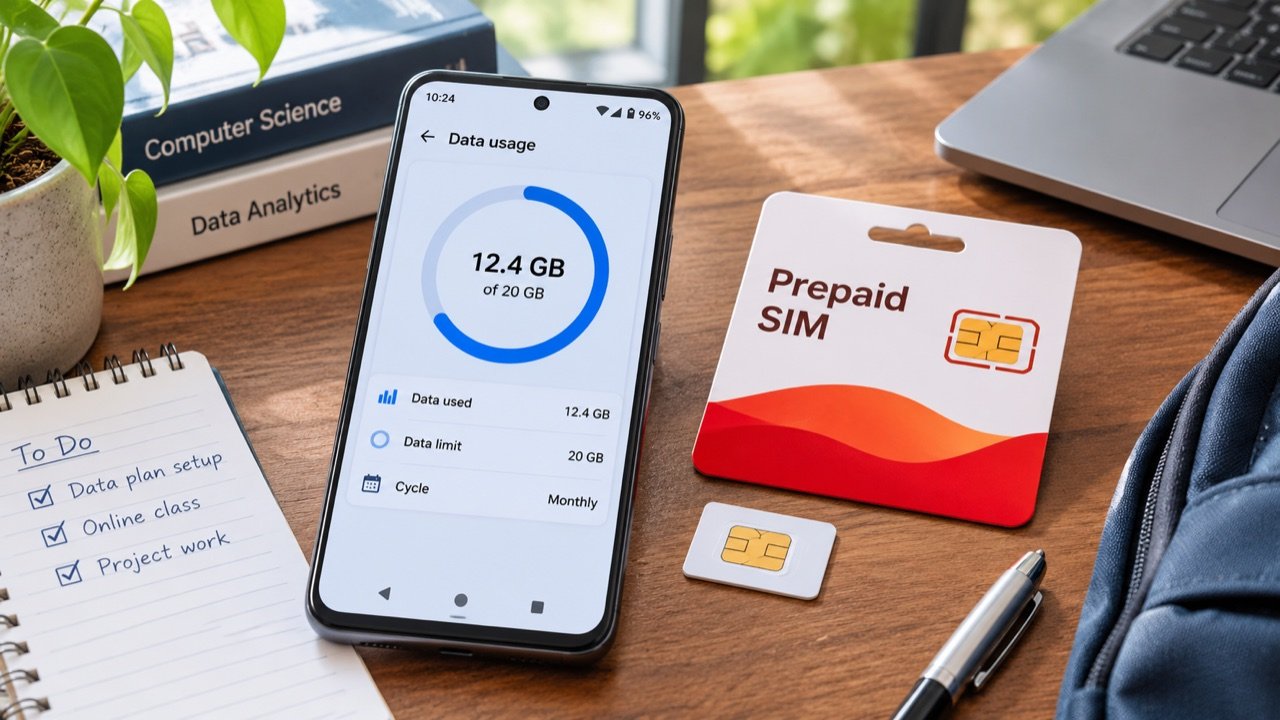
Make your daily mobile data allowance last longer To reduce mobile data use on an Android phone in India, first check which apps consumed your allowance, then enable Data Saver and adjust the highest-usage apps individually. On phones with Google’s standard Android menus, the setting is under Settings → Network & internet → Data Saver. […]

Make your daily mobile data allowance last longer
To reduce mobile data use on an Android phone in India, first check which apps consumed your allowance, then enable Data Saver and adjust the highest-usage apps individually. On phones with Google’s standard Android menus, the setting is under Settings → Network & internet → Data Saver. Samsung, Xiaomi, Vivo and other manufacturers may place it under Connections, SIM settings or Data usage. Searching Settings for “Data Saver” is often the fastest way to find it.
The useful starting point is your actual recharge plan. If it includes a daily allowance, write down when that allowance resets and how much remains before changing anything. A phone’s monthly usage graph can show a very different period from the operator’s daily counter. Someone who uses 1.5 GB mainly for classes needs different settings from someone whose photos upload after a family function. The goal is to identify which activity matters most and preserve enough data for it.
Understand what Data Saver actually changes
Android’s Data Saver limits background mobile data for most apps and services. An app actively in use can still consume mobile data. This means a video you watch for an hour can continue using your allowance even with the setting enabled. Data Saver is most useful against activity you did not deliberately start, such as background refresh, and works best alongside the quality and download controls inside individual apps.
You can allow specific apps unrestricted background data when they need to stay responsive. Choose these exceptions individually. An important work messenger or a service you rely on for timely updates may need different treatment from a shopping app. Google’s Data Saver instructions explain both the main switch and unrestricted data. Test your chosen exceptions by locking the phone and asking a trusted person to send an ordinary message.
Battery Saver is a separate control. A phone can have background activity restricted by data settings, battery settings and the app’s own notification settings at the same time. If messages arrive only when you open an app, record which switches you changed rather than turning every restriction off. Restore one setting and repeat the test. That makes it possible to preserve useful savings without guessing why notifications stopped.
Find the apps consuming your allowance
- Open the mobile data usage screen. Search Settings for “data usage” and select the mobile network or SIM you normally use.
- Check the measurement period. Note the start and end dates. Compare them with the recharge period shown in your operator’s official app.
- Sort or inspect the largest entries. Take a screenshot of the top five apps so you can compare changes later.
- Open each large entry. Where available, check foreground and background use separately. A large foreground total often reflects something you deliberately watched or downloaded.
- Check hotspot use. A laptop connected to your phone can download files and updates far larger than a typical chat message.
Use the operator’s counter to understand what has been deducted from your plan. Use Android’s counter to investigate activity on the device. They can differ because of timing, measurement periods and how traffic is classified. A difference by itself does not show that an app is malfunctioning. Before contacting support, capture both counters with their dates visible and explain which period you compared.
Adjust streaming, photos and downloads
Video quality is often the biggest controllable variable. Open the settings in the app you use for classes or entertainment and look for mobile data quality, data saving or automatic playback. Pick a lower setting for routine viewing, then check whether text on slides remains legible. A setting that saves data but makes lecture notes unreadable defeats the purpose. For a live class, audio plus shared slides may be sufficient when the teacher provides them separately.
Photo and video backup deserves its own check. After a wedding, festival or college event, hundreds of files may be waiting to upload. Open the backup app and inspect mobile data use, video uploads and roaming controls. Prefer Wi-Fi for a large batch when you have access to a reliable connection. Keep track of which files are still pending so that conserving data does not accidentally leave the only copy on a phone you are about to reset.
Download maps, tickets and study material before travelling. For navigation, see TechLein’s Google Maps offline guide for India. Saving an appropriate area ahead of time reduces dependence on repeated map downloads and unreliable signal. For course files, open a sample document after downloading it and verify it is accessible offline. A bookmark or a link inside a messaging app is not necessarily a local copy.
Control a laptop connected to your hotspot
A phone can look quiet while a tethered computer consumes its allowance. Before joining a class or work meeting through a hotspot, pause optional cloud synchronisation and large downloads on the laptop. Check whether a game launcher, browser download or photo application is running in the background. On Windows, inspect the network’s metered connection setting and review pending downloads yourself. Treat it as another layer of control rather than a promise that every application will stop transferring data.
Give the hotspot a recognisable name and a strong password. Review the connected-device list, where your phone provides one, and turn the hotspot off when the session ends. If a family member also uses the connection, agree on what can run during a meeting. A video stream in another room may compete for both the same data allowance and the same radio connection. Write down the counter before and after a typical class to estimate a realistic budget.
| Activity | Useful adjustment | What to check afterwards |
|---|---|---|
| Online classes | Reduce video quality while preserving slide readability | Audio stability and readable text |
| Photo backup | Use Wi-Fi for large batches | Pending files eventually finish uploading |
| Messaging | Keep essential background exceptions | Messages arrive while the screen is locked |
| Laptop hotspot | Review sync, downloads and connected devices | Usage during a representative session |
A practical daily plan for students and commuters
Divide your allowance according to the activities you must complete. For example, reserve a portion for an evening class before using the rest on a commute. The exact amount should come from your own measured sessions, since resolution, call duration and app behaviour vary. Keep a small reserve for unexpected work, a change in travel arrangements or downloading a document someone sends later in the day.
For three days, note your remaining allowance at roughly the same times. Record any unusual activity, such as uploading a presentation or sharing the hotspot. This short diary helps distinguish a consistent background problem from a single large transfer. If one app repeatedly dominates the total, change its settings and compare the next similar day. Changing ten settings together makes it difficult to identify which adjustment helped.
In a dual-SIM phone, check which line is selected for data before every comparison. An automatic data-switching feature, if enabled, can move traffic to another line under some conditions. Review the setting and the operator counters for both numbers. Changing the network generation also does not automatically reduce the size of a file. Our Android 5G settings guide explains the separate steps for network availability and handset support.
When notifications or apps stop working properly
If a work app becomes unreliable after you enable Data Saver, first open it on mobile data and confirm it can connect while active. Then lock the screen and repeat a simple incoming-message test. If foreground use works but the locked-screen test fails, inspect that app’s background-data exception and battery policy. Restore the minimum access needed and test again. Document the original setting so you can reverse the change later.
If every app stops loading, check the operator balance, signal and whether mobile data is enabled on the intended SIM. Test a fresh webpage rather than content already cached in an app. Restarting the phone can be a useful troubleshooting step, but repeatedly resetting network settings is disruptive and may erase saved connections. Work through the visible cause first. A depleted allowance or an expired plan will not be repaired by clearing an app cache.
Frequently asked questions
Will Data Saver reduce video quality automatically?
Some applications respond to system preferences, but the dependable approach is to inspect the video’s own quality setting. An actively used app can still transfer substantial data. Measure one representative session after changing its settings.
Should every app have unrestricted data?
Allow exceptions for services that need timely background access and verify their behaviour. Granting an exception to everything makes the main Data Saver switch much less useful.
Can I rely on an “unlimited 5G” label?
Check the current eligibility and conditions in your operator’s official app, including your plan, coverage and any hotspot conditions. Record what the app shows for your number rather than assuming another person’s recharge has the same benefits.
What is the simplest weekly check?
Review your largest mobile-data users, clear unnecessary pending downloads, and check that important notifications still arrive. A short review after an app update or a new recharge is more useful than keeping restrictive settings that no longer match how you use the phone.
Tags:
More from TechLein Editorial Team
View all articles →
How to Set Up a Windows 11 Mobile Hotspot in India
A Windows mobile hotspot lets your laptop share its internet connection with a phone or another nearby device. It can be useful in an Indian hostel with Ethernet access, a home office with a wired connection, or a temporary workspace where you need to connect a second device. The laptop becomes the local access point; […]

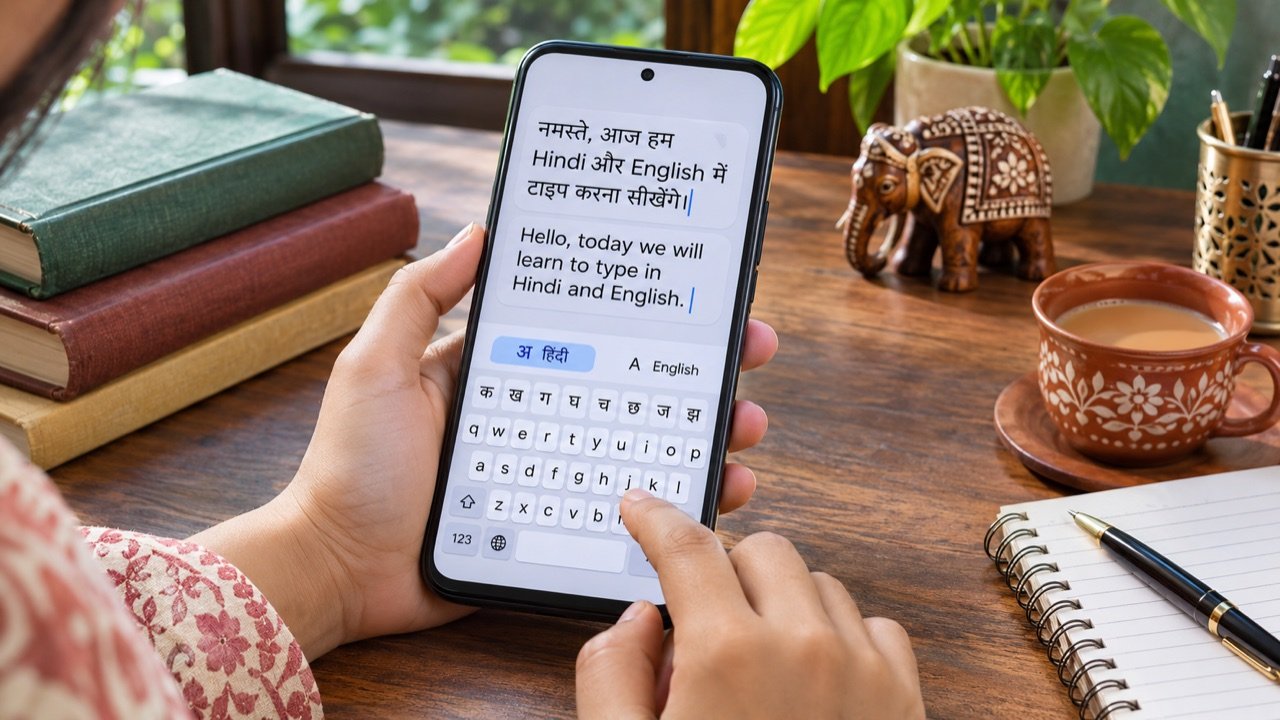
How to Type in Hindi on Android with Gboard: A Practical India Guide
Type Hindi while keeping your phone menus in English To type Hindi on an Android phone with Gboard, open a text field, tap the keyboard’s settings icon, choose Languages → Add keyboard, and select Hindi. Pick the available layout that suits how you want to type, then tap Done. Hold the space bar to switch […]
How to Enable Wi-Fi Calling in India on Android and iPhone
How to turn on Wi-Fi calling in India To enable Wi-Fi calling in India, connect your phone to a working Wi-Fi network, open its mobile or SIM settings, and turn on Wi-Fi Calling for the number you want to use. On iPhone, start in Settings → Mobile Service or Cellular and select the relevant line. […]