How to Enable Wi-Fi Calling in India on Android and iPhone
How to turn on Wi-Fi calling in India To enable Wi-Fi calling in India, connect your phone to a working Wi-Fi network, open its mobile or SIM settings, and turn on Wi-Fi Calling for the number you want to use. On iPhone, start in Settings → Mobile Service or Cellular and select the relevant line. […]

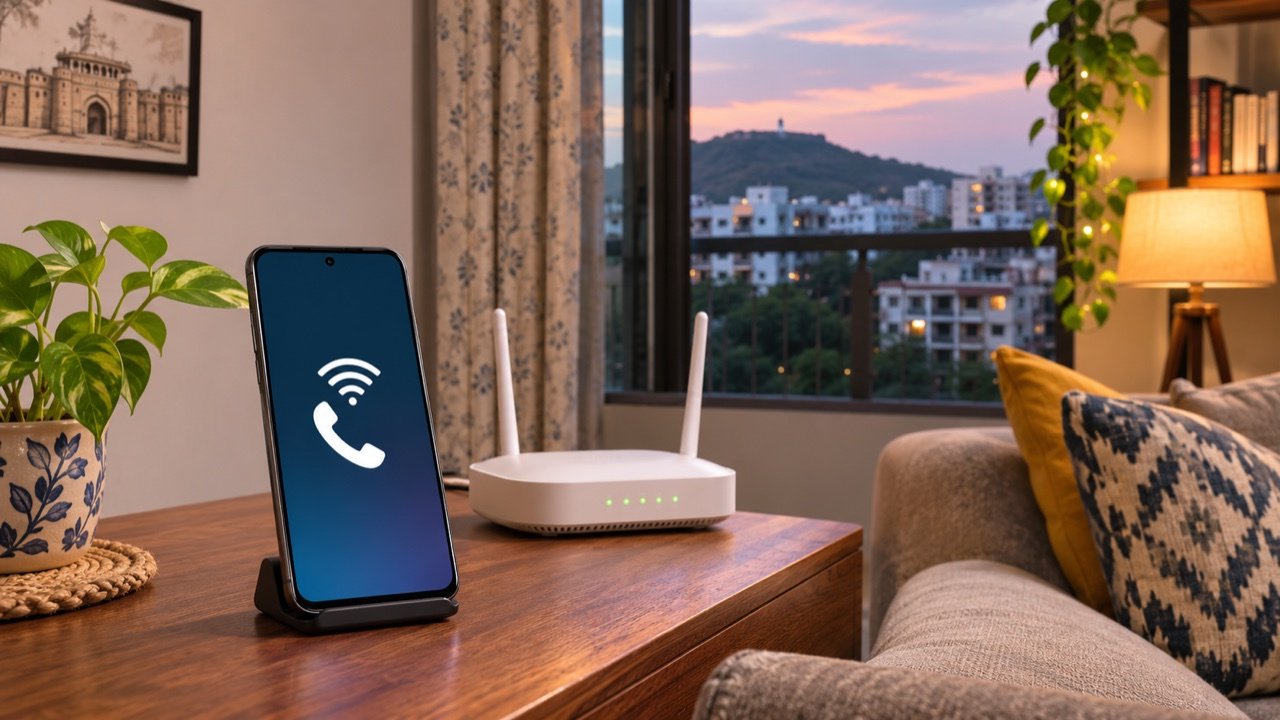
How to turn on Wi-Fi calling in India
To enable Wi-Fi calling in India, connect your phone to a working Wi-Fi network, open its mobile or SIM settings, and turn on Wi-Fi Calling for the number you want to use. On iPhone, start in Settings → Mobile Service or Cellular and select the relevant line. On Android, search Settings for “Wi-Fi calling” because the menu path varies by manufacturer. Then make a short call from the regular Phone app while staying near the router. Look for your handset’s Wi-Fi calling indicator instead of assuming a regular Wi-Fi icon means the call is using broadband.
Wi-Fi calling is especially helpful in an Indian apartment where the mobile signal disappears behind concrete walls, inside a ground-floor shop, or in a room that gets strong home Wi-Fi but weak mobile coverage. The switch uses your existing mobile number and your carrier’s voice service. It requires a compatible handset, carrier support for the SIM, and an internet connection that allows the phone to reach that service. Checking those three pieces in order helps you avoid resetting a phone when the real problem is coverage or Wi-Fi.
Wi-Fi calling, VoLTE and WhatsApp calls compared
Wi-Fi calling, sometimes shown as VoWiFi, sends ordinary carrier calls over an available Wi-Fi connection. You still dial from the phone’s regular dialler, and someone calling your mobile number does not need an app or a Wi-Fi enabled phone. VoLTE is another way your carrier can deliver a voice call, using its 4G network. Your phone and carrier can determine which path to use based on the line’s settings, both connections, and what the handset supports.
A WhatsApp or Signal call goes through that specific app. That can be a useful backup when both people have the same app and a working connection. It will not get an ordinary incoming carrier call delivered to your mobile number. Also, being able to stream a video on Wi-Fi proves that some internet traffic is getting through, but that alone does not show your phone has registered for Wi-Fi calling. Check the carrier indicator and test the dialler separately.
| Call type | Connection used | Who can receive the call? |
|---|---|---|
| Wi-Fi calling | Wi-Fi and the mobile carrier’s voice service | A number reachable under your carrier’s calling rules |
| VoLTE | The mobile operator’s 4G network | A number reachable under your carrier’s calling rules |
| App call | Mobile data or Wi-Fi | A contact reachable through the app |
Keep VoLTE enabled where your phone exposes the setting and your operator recommends it. It gives a compatible phone another voice path when you move away from Wi-Fi. For a separate problem with mobile data, see TechLein’s Android 5G settings guide for India. The radio setting that makes faster mobile data available solves a different problem from extending voice coverage into a room.
Set up Wi-Fi calling on Android
- Connect to a known Wi-Fi network first. Open a fresh webpage to make sure the network is online. If there is a sign-in page, complete it before testing calls.
- Search Settings for “Wi-Fi calling”. Depending on your phone, it may be under Connections, Network & Internet, Mobile Network or the individual SIM’s settings. Some phones expose carrier settings through their Phone app as well.
- Enable it on the SIM you use for voice. With two SIMs, open the settings for the correct number. If only one shows a switch, test the two lines separately before assuming both support the feature.
- Leave the SIM active. Keep airplane mode off for initial testing. Keep the phone close to the router so weak Wi-Fi is not another variable.
- Use your regular dialler for a short test call. Ask someone to call you back. Check the status bar, dialler or notification panel for an indicator your phone uses to identify Wi-Fi calling.
Jio’s Wi-Fi Calling setup instructions describe enabling the feature on a supported handset and recommend keeping both VoLTE and Wi-Fi Calling enabled. Airtel’s Wi-Fi Calling FAQ also covers compatibility and call handoff. If the switch is absent, search your carrier’s support pages using your exact device model before trying a menu path meant for a different phone.
Set up Wi-Fi calling on iPhone
Open Settings, select Mobile Service or Cellular, and tap the line you are troubleshooting if you use multiple numbers. Choose Wi-Fi Calling and turn on Wi-Fi Calling on This iPhone. Follow any prompts your operator shows. On an iPhone with two lines, note which line appears in the Phone app before dialling. A successful test on the primary line tells you little about the second line if you have not selected it.
Wait for the phone to register before judging the result. Start by making a call while still close to the router. Ask the other person whether audio is clear both ways. After hanging up, call your iPhone from another number and check whether the call rings as expected. If the problem only happens after a few hours, repeat the incoming call with the phone locked. That gives a better clue about a real missed-call problem than repeatedly tapping the switch while the screen is open.
Troubleshoot by changing one thing at a time
The Wi-Fi Calling switch is missing
Write down the exact phone model, software version, operator and SIM slot or line. Check for a system update, restart the phone after installing any relevant update, and search Settings again. A handset may advertise Wi-Fi calling generally while support still depends on its regional software and carrier configuration. This is especially relevant when a phone was purchased abroad or is running software for a different market. If the option does not appear after those checks, ask the operator whether it supports the exact combination rather than changing APN values or installing an app that claims to unlock the feature.
The switch is on but no Wi-Fi call indicator appears
Check that your Wi-Fi works beyond saved pages. Test near the router, then try a second trusted Wi-Fi network with the same phone and SIM, if available. If the indicator appears on the second network, focus on the first network’s connectivity and router configuration. A captive portal, unstable broadband or restrictions on a managed network can interfere with the service. If it fails on both, ask the carrier to check the line and handset support. Keep notes on which test passed so you can describe the issue accurately.
Calls sound broken or drop between rooms
Make one call near the router and another from the problem room while staying still. If audio is clean near the router, repeat with the door open or change position to see whether room coverage is the constraint. Next, test what happens when you walk between the two rooms. A call that survives when stationary but drops as you move may point to a transition between Wi-Fi nodes or between Wi-Fi and mobile coverage. If your router uses mesh equipment, record which room and time produce the drop before changing any configuration.
One of two SIMs works and the other does not
Place the call once with each line selected in the dialler. Then run an incoming test to each number. Verify each line’s Wi-Fi calling setting independently. Treat the working line as evidence that your Wi-Fi can carry at least one carrier’s service. It does not prove the second operator or phone configuration supports the same behaviour. If you contact support, report the affected line, which Wi-Fi networks you tried, and whether the caller could reach you on ordinary cellular voice.
Do you need Wi-Fi calling for a trip?
Test at the accommodation before depending on it for callbacks, work meetings or delivery coordination. Guest Wi-Fi can require you to reauthenticate after a period of inactivity. Surfing successfully one evening does not guarantee the connection will still be live the next morning. Keep an alternative way to reach people. Save important numbers and addresses ahead of time, and download the route if you expect weak mobile data on the drive. TechLein’s guide to using Google Maps offline in India explains how to test that download before leaving.
Frequently asked questions
Does Wi-Fi calling work in airplane mode?
Do not rely on it for troubleshooting in India. Jio’s airplane mode FAQ says its Wi-Fi Calling cannot be used with airplane mode enabled, and Airtel’s published FAQ also says its service does not support that setup. Leave the mobile line active and use the phone’s indicator to verify the call path.
Does the other person need a supported phone?
No. They can answer an ordinary call on their own phone. Carrier compatibility matters for your line and handset if you want your side of the call to use Wi-Fi.
Does using broadband make every call free?
Check your carrier’s own tariff and roaming terms for the type of number you are calling. The voice service still belongs to your mobile carrier. A change in how the call reaches the network does not tell you what the plan covers.
Tags:
More from TechLein Editorial Team
View all articles →
How to Set Up a Windows 11 Mobile Hotspot in India
A Windows mobile hotspot lets your laptop share its internet connection with a phone or another nearby device. It can be useful in an Indian hostel with Ethernet access, a home office with a wired connection, or a temporary workspace where you need to connect a second device. The laptop becomes the local access point; […]

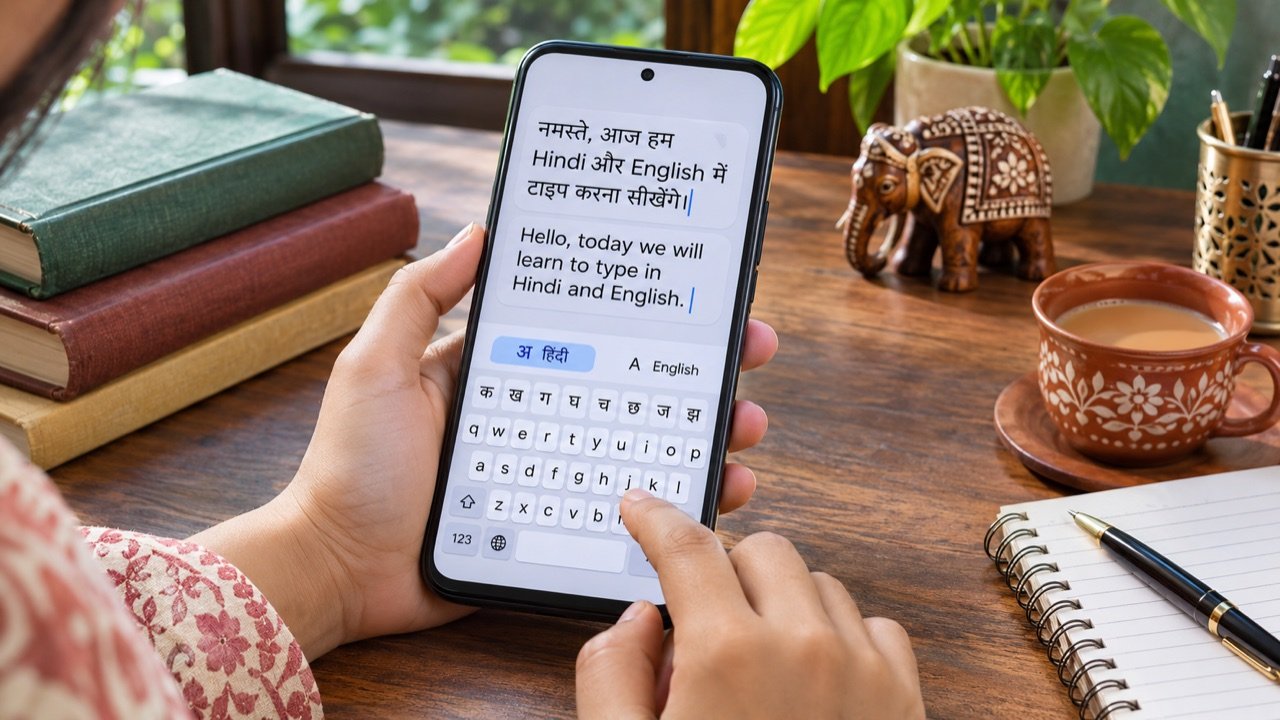
How to Type in Hindi on Android with Gboard: A Practical India Guide
Type Hindi while keeping your phone menus in English To type Hindi on an Android phone with Gboard, open a text field, tap the keyboard’s settings icon, choose Languages → Add keyboard, and select Hindi. Pick the available layout that suits how you want to type, then tap Done. Hold the space bar to switch […]
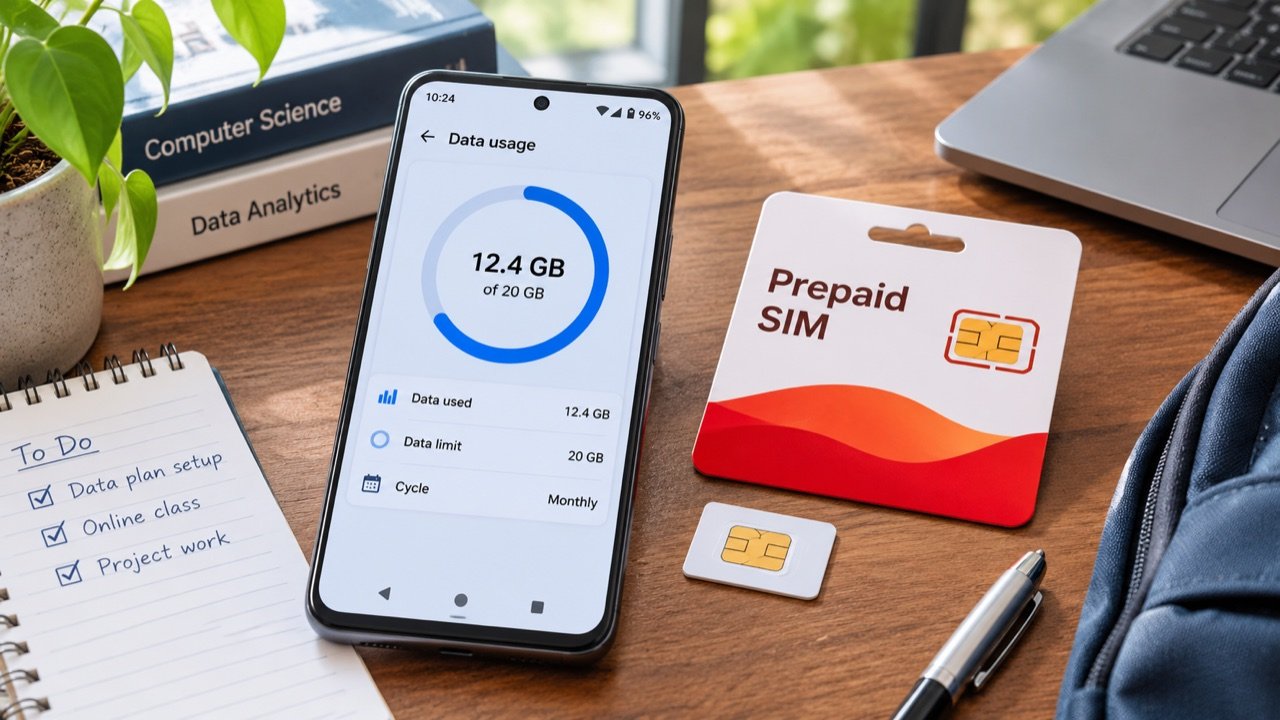
How to Use Android Data Saver in India Without Missing Important Alerts
Make your daily mobile data allowance last longer To reduce mobile data use on an Android phone in India, first check which apps consumed your allowance, then enable Data Saver and adjust the highest-usage apps individually. On phones with Google’s standard Android menus, the setting is under Settings → Network & internet → Data Saver. […]