How to Use Google Maps Offline in India on Android and iPhone
Download a map before your mobile signal drops To use Google Maps offline in India, open Google Maps while connected to Wi-Fi, tap your profile picture, choose Offline maps, then Select your own map. Position the rectangle over your destination and the roads you expect to take, then tap Download. Keep the app open until […]

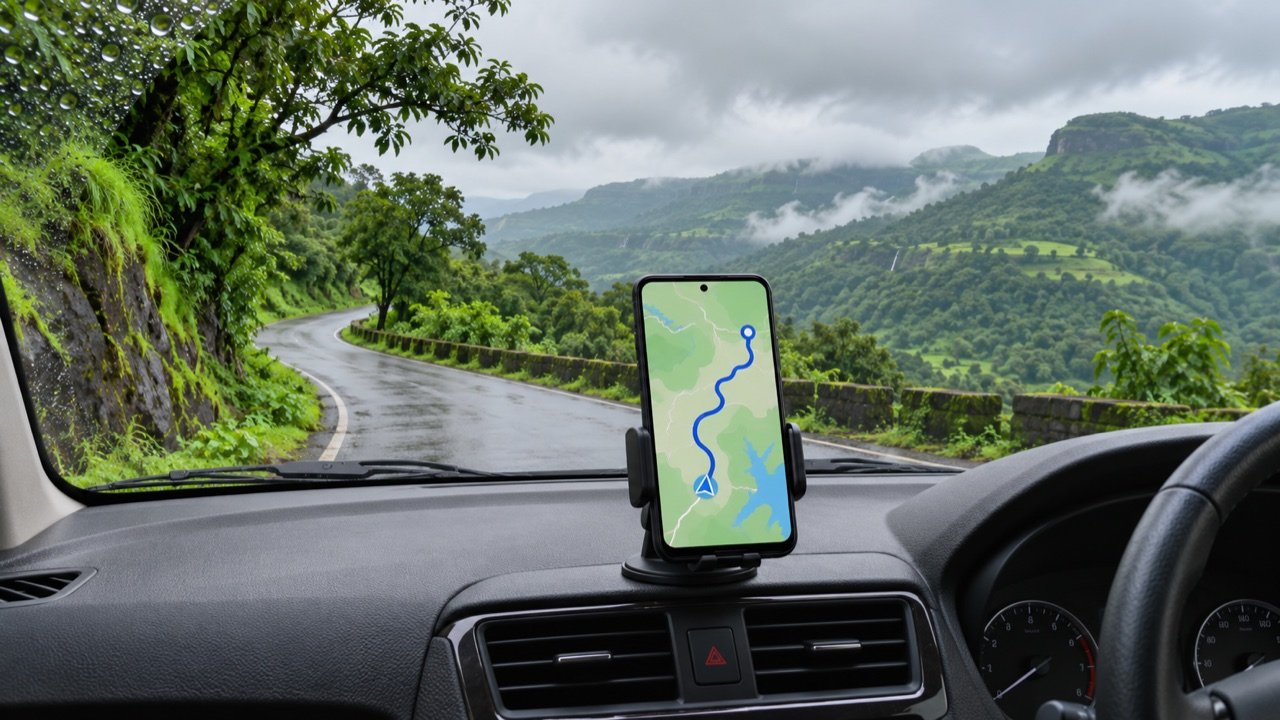
Download a map before your mobile signal drops
To use Google Maps offline in India, open Google Maps while connected to Wi-Fi, tap your profile picture, choose Offline maps, then Select your own map. Position the rectangle over your destination and the roads you expect to take, then tap Download. Keep the app open until the download finishes. When mobile data drops, Google Maps can continue to give driving directions if the entire computed route fits inside the area you saved.
This is particularly useful on a weekend drive through the Western Ghats, a rural work visit, or a trip where one passenger is navigating with a phone on a different network. A downloaded map also helps when your phone has a signal icon but data requests stall. Plan around the limits: offline driving does not include live traffic or alternate routes, and Google Maps does not provide offline walking, cycling or public transport directions. Those differences matter when a trip combines a highway drive with a hike or train connection.
How to download Google Maps offline on Android and iPhone
- Connect to Wi-Fi and open Google Maps. Use the account you normally travel with so you can locate the download again before leaving.
- Tap your profile picture, then Offline maps. If you cannot find the option on iPhone, check whether you are in Incognito mode. The download workflow in Google’s iPhone instructions requires regular mode.
- Tap Select your own map. Move the map under the rectangle and zoom out until it includes the roads and destinations you need. Check the size shown on-screen before accepting.
- Download and check the saved entry. Wait for completion instead of assuming the progress bar will finish after you close the app or leave Wi-Fi.
- Rename the map for your itinerary. A name such as “Pune to Mahabaleshwar” is easier to check than a generic numbered download, especially on a shared family phone.
You can also search for a town or another place and look for the offline download option in the place details. For a road trip, selecting an area yourself is usually easier to check because you can see what the box covers before the download. Google publishes separate instructions for Android offline maps and iPhone offline maps.
Save a route corridor, including the final approach
An offline map is a geographic area. When you download a rectangle around a hotel, the app has the map for that rectangle. A remote stretch between your last reliable signal and the hotel can still be missing. For an intercity trip, first look up the drive online. Follow the route across the map and note which district roads, bypasses and approach roads you will need after leaving the main highway. Then zoom out enough to capture that corridor plus space on both sides.
Suppose you plan to drive from Pune to a homestay beyond Mahabaleshwar. Save the part of the journey where you expect unreliable data, including the junction where you leave the highway, the town itself, and the road to the homestay. If storage and the download area allow it, include your starting point and return route too. For a trip where you want offline navigation from the beginning, check that the entire driving route is covered. The box should also cover the likely detour between the last known petrol station and the final turn.
If a single rectangle is too large, save overlapping areas. Avoid drawing two boxes whose edges only touch on the map: a route can curve away from the edge or enter a town via a different approach. Include at least one recognisable junction or town in the overlap and try a route crossing that overlap before relying on it. Delete old city downloads after the trip if keeping them would crowd out the area you actually need next.
What works without mobile data?
| Feature | What to expect when offline |
|---|---|
| Driving directions | Available when the full route fits inside the downloaded area. |
| Live traffic and alternative routes | Unavailable offline. Check likely road closures before departure. |
| Walking, cycling and public transport directions | Unavailable in offline Google Maps. Keep separate instructions ready. |
| Phone location | Satellite positioning can work without mobile data. Tall buildings, covered parking and tunnels can interfere with reception. |
| Arrival details | Save the address, booking reference and phone number separately if you might need them with no connection. |
Map coverage and location reception are different problems. If the map opens but the location marker stays behind you, the phone may be struggling to determine its position. If the location marker moves normally but Maps cannot build a route, inspect the saved area and the selected travel mode. A missing section of road can stop a route from being calculated even if the blue dot is in the right place.
Test your download before leaving
Open the saved map and check the outline. Make sure your destination is far enough inside it to leave room for the road into the property or pickup point. Next, while stationary, turn off both Wi-Fi and mobile data, keep location services on, and ask Google Maps to calculate a driving route. Try one short route inside the area and one representative route from your itinerary. Starting fresh matters: a route opened while connected can hide a gap you would only notice when calculating directions offline.
If you are testing from another city, you can set the starting point manually to a junction on the saved drive. That can help isolate whether you downloaded the right roads. Repeat from the actual departure point if you intend to go offline immediately. Once you finish testing, restore connectivity and download a larger area if the app cannot calculate the route. For mobile signal trouble that persists outside the trip, TechLein’s guide to enabling 5G on Android in India covers the separate checks for handset, settings and operator coverage.
Save the complete address and a nearby landmark in a note available offline. If someone shares a WhatsApp pin, open it before you leave and write down the place name or coordinates and the last turn separately. This helps if the chat or link will not load at arrival. For a hill stay, it is also worth asking the host in advance which approach they recommend. Two road options that look similar on the map can differ considerably in access.
Fix common offline map problems
The Download option is missing
Open the Offline maps screen from your profile menu and try selecting the area directly. Check that your app has internet access. On iPhone, leave Incognito mode and use the normal app session. Google also notes that downloads are unavailable in some areas for reasons including contractual restrictions or address formats. If a specific destination refuses to download, try a smaller neighbouring area and save critical directions separately.
The map downloads but navigation fails
Check that you selected the car icon and that the origin, destination and route all fit inside your saved coverage. Pay particular attention to diversions and service roads near the edges. If Maps finds the destination but cannot plot the journey, try a short driving route entirely inside a single saved area. If the short route works, inspect the boundaries before changing phone settings.
The app warns that a map is expiring
Open Offline maps, select the area and update it while connected to Wi-Fi. Google Maps can attempt automatic updates on Wi-Fi as a map approaches expiry, but check the displayed status yourself before a trip. A phone that rarely connects to Wi-Fi or has limited storage may still need attention before departure. Update maps again shortly before a repeat trip if street layouts or access routes may have changed.
The car display goes blank or the location drifts
Test the same download directly on the phone first. A phone that navigates by itself points you toward a car connection or display issue. If the phone itself cannot get a fix, check that Google Maps has location permission, then try again outdoors while parked. A downloaded map supplies map data, while the phone still has to determine where it is. Set up the display and audio before driving.
A practical checklist for mixed trips
For a trip that includes a train, metro or bus after the drive, keep the station name, entrance and onward service details outside Google Maps. For a walking route from a station, save written directions or a screenshot while you are online. If the trip continues onto a trek, use a mapping tool designed for offline trails and verify that the specific trail is included. A road map cannot tell you whether a crossing is safe or whether a trail has been closed locally.
Before departure, review the offline download, parking entrance, destination phone number and an alternate meeting point with whoever is navigating. Carry charging gear that works in the vehicle and make a copy of the essential directions available on a second device if the group is splitting up. Download the destination again if you switch phones: seeing the same Google account on a second device does not mean the local map file is already available there.
Frequently asked questions
Will GPS work if I turn off mobile data?
It can. The phone can calculate its position from satellite signals when location services are enabled. Offline navigation also needs the right map data stored on the phone. Test both outdoors before leaving.
Can I save an entire state offline?
Use the area selector to see how large a download the app allows. If you cannot capture everything at once, download overlapping areas around the routes you actually plan to drive. That is easier to check and update than a collection of maps you rarely use.
Do I need to download the map again for the return trip?
You can reuse a current download if it covers the complete return route. Check separately if you are taking a different highway, stopping in another town, or dropping someone at a station outside the original rectangle.
Tags:
More from TechLein Editorial Team
View all articles →
How to Set Up a Windows 11 Mobile Hotspot in India
A Windows mobile hotspot lets your laptop share its internet connection with a phone or another nearby device. It can be useful in an Indian hostel with Ethernet access, a home office with a wired connection, or a temporary workspace where you need to connect a second device. The laptop becomes the local access point; […]

How to Type in Hindi on Android with Gboard: A Practical India Guide
Type Hindi while keeping your phone menus in English To type Hindi on an Android phone with Gboard, open a text field, tap the keyboard’s settings icon, choose Languages → Add keyboard, and select Hindi. Pick the available layout that suits how you want to type, then tap Done. Hold the space bar to switch […]
How to Use Android Data Saver in India Without Missing Important Alerts
Make your daily mobile data allowance last longer To reduce mobile data use on an Android phone in India, first check which apps consumed your allowance, then enable Data Saver and adjust the highest-usage apps individually. On phones with Google’s standard Android menus, the setting is under Settings → Network & internet → Data Saver. […]