How to Type in Hindi on Android with Gboard: A Practical India Guide
Type Hindi while keeping your phone menus in English To type Hindi on an Android phone with Gboard, open a text field, tap the keyboard’s settings icon, choose Languages → Add keyboard, and select Hindi. Pick the available layout that suits how you want to type, then tap Done. Hold the space bar to switch […]

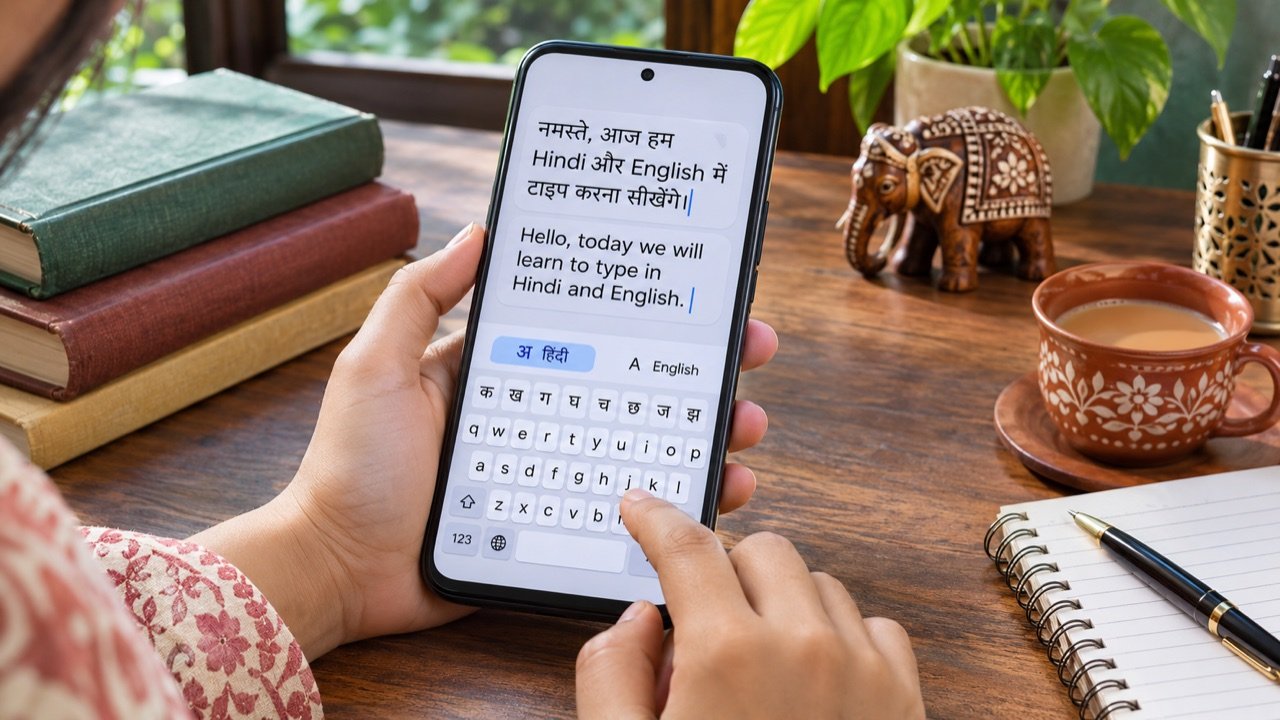
Type Hindi while keeping your phone menus in English
To type Hindi on an Android phone with Gboard, open a text field, tap the keyboard’s settings icon, choose Languages → Add keyboard, and select Hindi. Pick the available layout that suits how you want to type, then tap Done. Hold the space bar to switch between the keyboards you have enabled. Adding a Hindi keyboard changes your typing options without changing the language of your phone’s menus.
This is useful when you write English emails at work but send Hindi messages to family, prepare bilingual notices for a shop, or reply to a college group in both languages. Start with a private note rather than a live conversation. A few minutes of testing will tell you whether the selected layout produces Devanagari letters, Latin letters, or suggestions that need manual selection. Those are different outcomes, and the best choice depends on your audience.
Choose between Hindi script, transliteration and Hinglish
Hindi written in Devanagari, such as “नमस्ते”, is different from Hindi written with Latin characters, such as “namaste”. Transliteration is the process of converting sounds typed in one script into another. If your installed keyboard offers a Hindi transliteration layout, you can type a familiar Roman spelling and select the intended Hindi word. Check the layout preview and try a short sentence before using it for a document.
Hinglish can also mean a sentence mixing Hindi and English words, regardless of script. A person asking for a “Hinglish keyboard” may want English letters only, while another wants Hindi script with occasional English names. Decide which result you need. For a school notice, match the institution’s requested script. For a customer message, prioritise what the recipient can read comfortably. For a website or form, follow its explicit field instructions.
| Your goal | What to try | What to verify |
|---|---|---|
| Write directly in Hindi script | A Hindi layout showing Devanagari keys | Matras, punctuation and joined letters |
| Type Roman sounds and produce Hindi | A transliteration layout when offered | The selected Hindi spelling |
| Keep Hindi words in English letters | An English or suitable Latin layout | Autocorrect does not replace the intended wording |
| Mix languages in a notice | Switch between enabled keyboards | Names, numbers and line breaks |
Add and switch languages in Gboard
- Open a note or message draft. Tap the writing area so the keyboard appears.
- Open Gboard settings. Use its settings icon, or find Gboard under the on-screen keyboard settings in Android.
- Select Languages and add Hindi. Review the layout choices that your version offers.
- Keep the English layout you already use. You can switch when you need an English address, a product name or a technical term.
- Hold the space bar to change languages. Look at the keyboard before typing the next sentence.
Google’s Gboard language instructions also explain the language-switch key. If you prefer a globe button, inspect Preferences for the relevant option. The exact appearance depends on the keyboard configuration. A missing globe is not necessarily a missing language: holding the space bar can still reveal the enabled choices.
If another keyboard opens, check Android’s current keyboard selection. Installing Gboard does not always make it the active input method. Open the keyboard picker and choose the intended keyboard, then return to your note. Keep the settings for the keyboard you actually use in mind when troubleshooting. Changing a layout in one keyboard will not alter the behaviour of another keyboard that is still selected.
Build a short test before writing a long message
Write four lines in a private note. First, type a greeting. Next, write a person’s name and a place name. Add a sentence containing a time and a number. Finally, write one English technical term inside a Hindi sentence. Read the complete note once without looking at the keys. This small test exposes the mistakes that matter most in daily communication: names changed by suggestions, numbers beside the wrong word, and punctuation that shifts the intended meaning.
For example, a shop owner preparing a pickup message can test the customer name, order reference, collection time and location separately. A student can test a teacher’s name, subject and submission date. Use fictional details for the test. If a suggestion looks plausible but changes the word, choose a different candidate or type the word manually. Familiarity with a keyboard should come from repeatable examples rather than sending trial messages to a group.
Copy your test into the app where you intend to use it. Some forms impose character limits or accept only specific scripts. A correctly rendered note can still be rejected by a field with different requirements. Check the submitted preview where available, especially for forms that later print a PDF or acknowledgement. Keep a copy of the final text outside the form until you have confirmed it was accepted.
Proofread Hindi input carefully
Pay attention to vowel marks, nasal sounds and words that look similar at a glance. A transliteration suggestion is a prediction, so select the word that matches the intended sentence. Read the surrounding phrase as well as the isolated word. A spelling that is valid in one context may be wrong in another. For an official notice or important public message, ask a fluent reader to review the final version before distribution.
Names deserve special care. Product names, surnames and small-town place names may not appear in the suggestion list. Avoid repeatedly selecting a similar common word just because it is offered first. Type the name deliberately and compare it with the source spelling. If you have an approved spelling from the person or organisation, preserve it in your reference note so that later messages remain consistent.
Check numbers and units independently. An otherwise clear sentence becomes confusing when “15” becomes “50”, a time is missing AM or PM, or a rupee amount is associated with the wrong item. Read the final message in the order a recipient will use it. For a pickup instruction, that means who, what, where and when. For a class notice, it means subject, date, time and any required material.
Use voice typing as a draft, then review it
Voice typing availability and behaviour vary by language, device and keyboard version. Google notes that talk-to-text does not work with every language. If a microphone button is available, start with a short sentence in a quiet room. Check which language and script appear in the result. If it produces the wrong output, return to the enabled keyboard languages and test again before dictating a long paragraph.
Speak names, addresses and numbers more deliberately than ordinary conversation. Pause between separate items, then edit punctuation and line breaks yourself. A noisy train platform, a fan beside the microphone or another person speaking nearby can make a draft harder to review. For a long notice, dictate one paragraph at a time. That keeps corrections manageable and reduces the chance that a missed word changes an entire instruction.
For sensitive information, consider where you are speaking and which application receives the text. A private message can become audible to everyone around you during dictation. Use manual typing when that is more appropriate. If background connectivity is unreliable, our Wi-Fi calling guide for India explains a separate way to improve ordinary voice calls at home. Voice typing and carrier calling are different features, so test each on its own.
Fix common bilingual typing problems
The phone keeps switching back to English
Look at the active keyboard before continuing. An app may request a specific input type, such as an email address or password. Try an unrestricted note field to see whether Hindi works there. If it does, investigate the original field’s requirements. If it fails in every app, reopen Gboard Languages and confirm the desired layout is enabled.
Autocorrect changes names or mixed-language sentences
Review the text-correction settings and change only the option causing trouble. Then repeat your four-line test. Turning off every suggestion may make typing slower without solving the specific issue. For a recurring name, keep an approved spelling ready to copy. Always review the final message after inserting it, since spacing and punctuation can change during editing.
The keyboard is slow after an update
Close the current app and try a simple note. Restart the phone if the problem continues across apps, then check for an update through the official app store. Avoid downloading an unknown replacement keyboard from a message or advertisement. A keyboard handles what you type, so its source matters. Save unfinished text before troubleshooting anything that might close the app.
Frequently asked questions
Do I need to change the whole phone to Hindi?
No. Gboard supports changing keyboard languages independently of Android’s display language. You can keep menus in English while writing messages in Hindi.
Can I type Hindi when mobile data is limited?
Test your selected layout in advance with connectivity turned off. Features such as basic typing, suggestions and voice input may have different requirements. For conserving a daily allowance, see our guide to Android mobile-network settings alongside the keyboard’s own settings.
Should I use transliteration for every document?
Use whichever method produces accurate text at a comfortable pace. Transliteration can help someone familiar with Roman spellings, while a native-script layout may suit an experienced Hindi typist. The final proofreading standard should be the same.
Tags:
More from TechLein Editorial Team
View all articles →
How to Set Up a Windows 11 Mobile Hotspot in India
A Windows mobile hotspot lets your laptop share its internet connection with a phone or another nearby device. It can be useful in an Indian hostel with Ethernet access, a home office with a wired connection, or a temporary workspace where you need to connect a second device. The laptop becomes the local access point; […]

How to Use Android Data Saver in India Without Missing Important Alerts
Make your daily mobile data allowance last longer To reduce mobile data use on an Android phone in India, first check which apps consumed your allowance, then enable Data Saver and adjust the highest-usage apps individually. On phones with Google’s standard Android menus, the setting is under Settings → Network & internet → Data Saver. […]
How to Enable Wi-Fi Calling in India on Android and iPhone
How to turn on Wi-Fi calling in India To enable Wi-Fi calling in India, connect your phone to a working Wi-Fi network, open its mobile or SIM settings, and turn on Wi-Fi Calling for the number you want to use. On iPhone, start in Settings → Mobile Service or Cellular and select the relevant line. […]