How to Reduce Mobile Data Usage on Android (2026 Guide for Indian Users)
Reduce mobile data usage on Android: find the app eating your pack, use Data Saver, cap streaming quality, fix WhatsApp auto-download and set a data limit.

Running out of data by nine in the evening is rarely about watching too much video. It is usually one badly behaved app, one auto-backup nobody switched to Wi-Fi, and a streaming default that quietly went up a notch. Learning to reduce mobile data usage on Android is less about restraint and more about correcting a handful of settings that ship in the wrong position.
The order matters. Find the culprit first, then apply the blunt tools, then tune the individual apps. Doing it the other way round means fiddling with settings that were never the problem. This guide from TechLein works through it in that order, with the exact menu paths, and finishes with the warning-and-limit setting that stops a bad month before it happens.
Key takeaways
- Check per-app data usage first. One app is usually responsible for most of the consumption.
- Data Saver blocks background data broadly; per-app background restriction is the precise version of the same idea.
- Streaming quality caps and disabled autoplay save more than anything else for most people.
- Set a data warning and a hard limit with the correct billing cycle date so the phone cuts itself off.
Find out what is actually eating your data
Go to Settings, Network and internet, then Internet or SIMs, pick your SIM, and open app data usage. On Samsung the route is Settings, Connections, Data usage, Mobile data usage. On Xiaomi and Redmi it is Settings, SIM cards and mobile networks, Data usage.
Two things to do on that screen. First, set the date range to your recharge cycle rather than the calendar month, otherwise the numbers mean nothing. Second, sort by usage and look at the top three apps. Almost always the answer is obvious once you look: a video app, a social app, or something syncing that you forgot about. Tap any app to see the split between foreground and background usage. Heavy background usage on an app you barely open is the clearest signal you have.
Turn on Data Saver
Data Saver stops apps from using mobile data in the background. Find it under Settings, Network and internet, Data Saver, and switch it on. Messages will still arrive, because the push notification service is exempt, but background syncing and prefetching largely stops.
The important half of Data Saver is the allowlist, labelled unrestricted data. Add the two or three apps that genuinely need background access, such as your primary messaging app or a work email client, and leave everything else restricted. If you turn Data Saver on and then allowlist fifteen apps, you have achieved nothing.
One side effect worth knowing: some apps behave oddly under Data Saver, delivering notifications late or failing to refresh. If a specific app misbehaves, allowlist that one app rather than turning the whole feature off.
Restrict background data app by app
If you would rather not use Data Saver globally, do the same thing surgically. Open Settings, Apps, pick the app, then Mobile data and Wi-Fi, and turn off background data. The app will only use mobile data while it is open on screen.
Good candidates are shopping apps, news apps, food delivery apps, and anything that shows you a feed. Bad candidates are your messaging apps, your calendar, and anything you rely on for alerts. It takes ten minutes to go through your app list once, and it does not need repeating.
Cap streaming quality
Video is where the gigabytes go, and every major app has a mobile-specific quality setting that most people never open. Higher resolutions cost several times more data per hour than standard definition, and on a phone screen the difference is far smaller than the data cost suggests.
| App | Where the setting lives | What to choose |
|---|---|---|
| YouTube | Profile, Settings, Video quality preferences, On mobile networks | Data saver, and set downloads to Wi-Fi only |
| Settings, Data usage and media quality | Use less mobile data, and lower upload quality | |
| Netflix | Profile, App settings, Video quality or Cellular data usage | Save data, or Wi-Fi only if you never watch on the move |
| Spotify and music apps | Settings, Audio quality | Normal on mobile, high only on Wi-Fi, and download playlists on Wi-Fi |
| Google Photos | Settings, Backup, Mobile data usage | Back up over Wi-Fi only |
| Play Store | Settings, Network preferences | App download and auto-update over Wi-Fi only |
This becomes more important, not less, after you switch your phone to 5G, because apps often pick a higher default quality when the connection is fast. A daily limit that comfortably lasted on 4G can disappear by afternoon on 5G purely because of automatic quality selection.
Turn off autoplay
Autoplay is the most wasteful default on any phone, because it spends data on video you did not choose to watch. In YouTube, turn off autoplay on the home feed and autoplay of the next video. In Instagram and Facebook, set videos to never autoplay or to autoplay on Wi-Fi only. Do the same in whichever other feed apps you use.
Muting sound does not help; the video still downloads. The only thing that helps is stopping playback from starting.
Fix WhatsApp auto-download
Group chats full of forwarded videos will consume a pack on their own if left alone. Open WhatsApp, Settings, Storage and data, then media auto-download. Under the mobile data option, uncheck everything, or leave only photos ticked if you want images to arrive automatically. Keep Wi-Fi set to download what you like.
Two more settings on the same screen matter. Use less data for calls reduces the bandwidth of voice and video calls at a modest cost in quality. Media upload quality set to data saver cuts what you send. If you also share a lot of media, our guide to how to secure your WhatsApp account is worth a read alongside this, since the storage and privacy settings sit close together.
Move updates and backups to Wi-Fi
App updates are one of the largest invisible consumers. In the Play Store, open your profile, Settings, Network preferences, and set both app download preference and auto-update apps to over Wi-Fi only. Do the same for system updates in Settings, System, if your phone offers the choice.
Phone backup is the other one. Photo and video backup running on mobile data can consume more in a day than everything else combined. Set Google Photos to back up on Wi-Fi only, and check that your device backup is doing the same. Our guide on how to back up your phone data explains how to keep backups running reliably without letting them run on your mobile pack.
Set a warning and a hard limit
- Open Settings, Network and internet, SIMs, and select the SIM you use for data.
- Open Data warning and limit.
- Set the app data usage cycle to the day your pack renews, not the first of the month. This is the step people skip, and it makes every other number wrong.
- Turn on set data warning and enter a figure a little below your allowance, so you get a nudge with room to react.
- Turn on set data limit and enter your actual allowance. The phone will switch mobile data off when it is reached.
- Remember that the phone’s count and the operator’s count will differ slightly. Keep a small buffer rather than setting the limit at exactly your pack size.
The settings people forget
A few smaller items add up. Turn off the option that automatically switches to mobile data when Wi-Fi is poor, often called adaptive connectivity or switch to mobile data automatically, because it silently moves you onto your pack in the middle of a large download. Check your personal hotspot, since anything tethered spends your data at laptop rates. Disable background app refresh for pre-installed apps you never use, and if your phone shows a system app consuming data heavily, look at what it is syncing rather than assuming it is unavoidable.
Finally, make sure your home Wi-Fi is actually reliable, because a flaky connection pushes the phone onto mobile data without you noticing. If your connection drops often, our guide to fixing slow Wi-Fi is the better place to start, and the same stable connection is what makes Wi-Fi calling work properly too.
Frequently asked questions
Why does my phone show less data used than my operator?
The phone counts what apps consume; the operator counts what crosses its network, including overheads. A small gap is normal. A large gap is worth raising with customer care.
Does Data Saver stop WhatsApp messages arriving?
No. Push notifications continue to work under Data Saver. What stops is background syncing and media prefetching, which is the part you want stopped anyway.
Which single change saves the most data?
For most people it is capping video quality on mobile networks and turning off autoplay. Those two together usually make a bigger difference than everything else combined.
Does 5G use more data than 4G?
Not for the same content, but it encourages apps to pick higher quality and encourages you to stream more. The effect on your pack is real even though the technology itself is not to blame.
Is it worth buying a bigger pack instead?
Sometimes. Work out what you actually use per day after applying these settings for a month, then compare packs on cost per GB using our recharge plan comparison method rather than guessing.
The bottom line
Almost everyone who complains about running out of data is losing most of it to three things: automatic video quality, autoplay, and background syncing that was never meant to run on a mobile pack. Fixing those takes half an hour once and does not require you to use your phone any less.
Set the warning and limit while you are in there, with the correct cycle date, and check the per-app usage screen once a month. That single habit will catch the next misbehaving app long before it costs you a recharge. If you are considering an eSIM or a second line for data, our eSIM guide for Indian users explains how a data-only profile can work alongside your main number.
Tags:
More from TechLein Editorial Team
View all articles →
How to Set Up a Windows 11 Mobile Hotspot in India
A Windows mobile hotspot lets your laptop share its internet connection with a phone or another nearby device. It can be useful in an Indian hostel with Ethernet access, a home office with a wired connection, or a temporary workspace where you need to connect a second device. The laptop becomes the local access point; […]

How to Type in Hindi on Android with Gboard: A Practical India Guide
Type Hindi while keeping your phone menus in English To type Hindi on an Android phone with Gboard, open a text field, tap the keyboard’s settings icon, choose Languages → Add keyboard, and select Hindi. Pick the available layout that suits how you want to type, then tap Done. Hold the space bar to switch […]
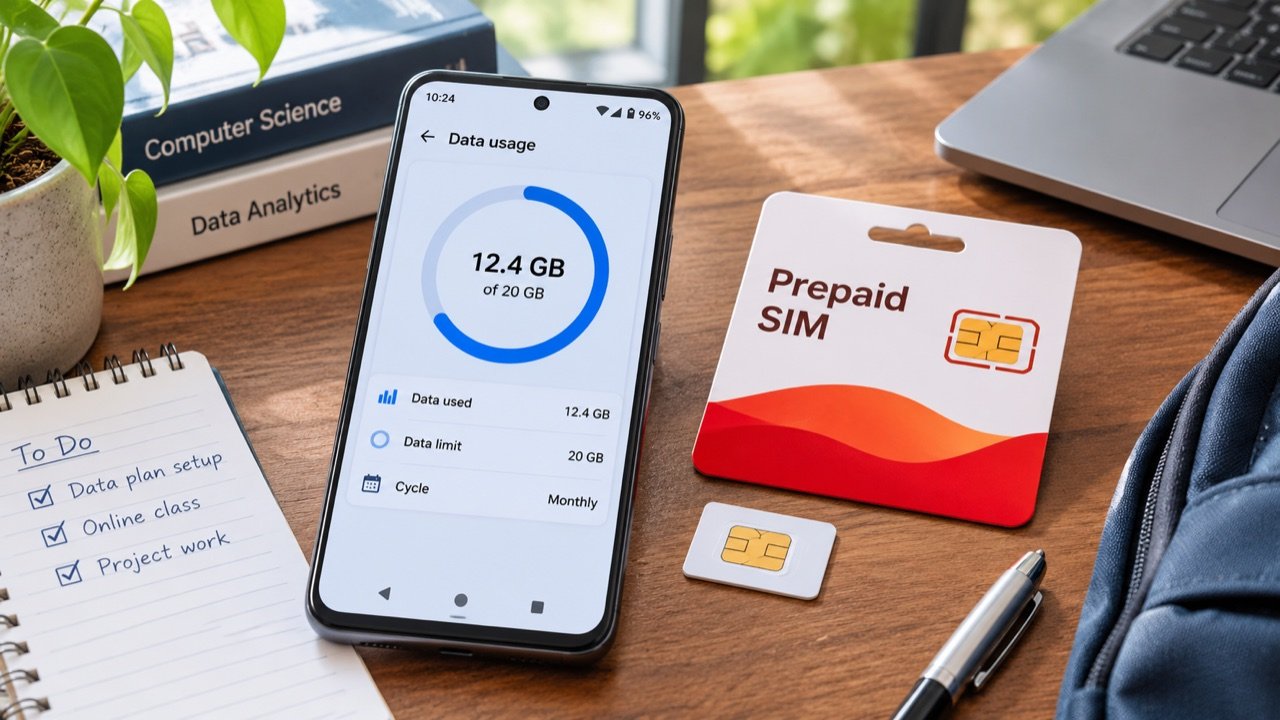
How to Use Android Data Saver in India Without Missing Important Alerts
Make your daily mobile data allowance last longer To reduce mobile data use on an Android phone in India, first check which apps consumed your allowance, then enable Data Saver and adjust the highest-usage apps individually. On phones with Google’s standard Android menus, the setting is under Settings → Network & internet → Data Saver. […]