WhatsApp Not Installing or Updating? Common Fixes (2026)
WhatsApp not installing or updating on Android? Try these 2026 fixes for India — storage, Play Store errors, connection issues and safe troubleshooting.


It is frustrating when WhatsApp will not install or update, especially when you rely on it every day. The good news is that most causes are simple and safe to fix. This guide covers the common reasons WhatsApp fails to install or update on Android and how to solve them — without resorting to risky third-party APKs. For safe installation, see our WhatsApp download and install guide.
WhatsApp Not Installing? Fix 1: Check Storage
One of the most common reasons an install or update fails is insufficient storage. WhatsApp and its media need free space to install. Clear some room by deleting unused apps, old downloads, and large media files, then try again. Our guide on freeing up storage on Android can help.
Fix 2: Check Your Internet Connection
A weak or unstable connection can interrupt the download. Switch between Wi-Fi and mobile data, make sure you have a stable signal, and retry. Large updates in particular need a steady connection to complete.
Fix 3: Clear the Play Store Cache
If the Google Play Store throws an error, clearing its cache often helps. Go to Settings, Apps, Google Play Store, Storage, and tap Clear Cache. Then restart your phone and try the update again. This resolves many mysterious Play Store errors.
Fix 4: Update Android and the Play Store
Very old versions of Android or the Play Store can block newer app versions. Check for a system update in Settings, and ensure the Play Store itself is current. WhatsApp requires a reasonably recent Android version to run, so an outdated OS may be the cause.
Fix 5: Restart and Retry
It sounds basic, but a simple restart clears temporary glitches that block installs. Reboot your phone, reopen the Play Store, and try once more before assuming something is seriously wrong.
Do Not Use Unofficial APKs as a “Fix”
If WhatsApp still will not install, resist the temptation to grab it from a third-party APK site. That is exactly how many phones get infected. Stick to the Play Store or WhatsApp’s official website, and if the problem persists, contact WhatsApp support. Our guide on spotting fake APK sites explains the danger.
If WhatsApp is not installing even after these steps, the safest response is patience and official sources. WhatsApp not installing is almost always a storage or connection issue, not a reason to sideload.
Conclusion
Most WhatsApp install and update problems come down to storage, connection, or the Play Store’s cache — all easy and safe to fix. Work through these steps in order, keep your system updated, and always use official sources. You will almost always get WhatsApp working again without any risk.
Tags:
More from TechLein Editorial Team
View all articles →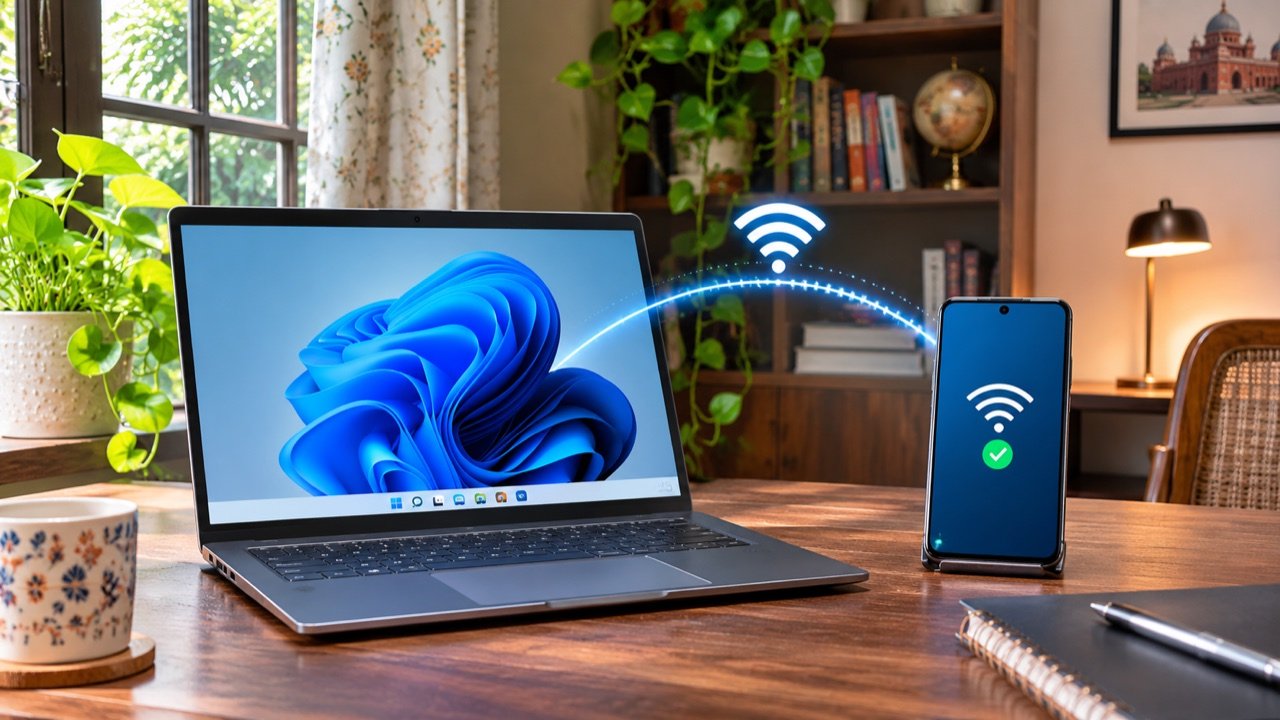
How to Set Up a Windows 11 Mobile Hotspot in India
A Windows mobile hotspot lets your laptop share its internet connection with a phone or another nearby device. It can be useful in an Indian hostel with Ethernet access, a home office with a wired connection, or a temporary workspace where you need to connect a second device. The laptop becomes the local access point; […]

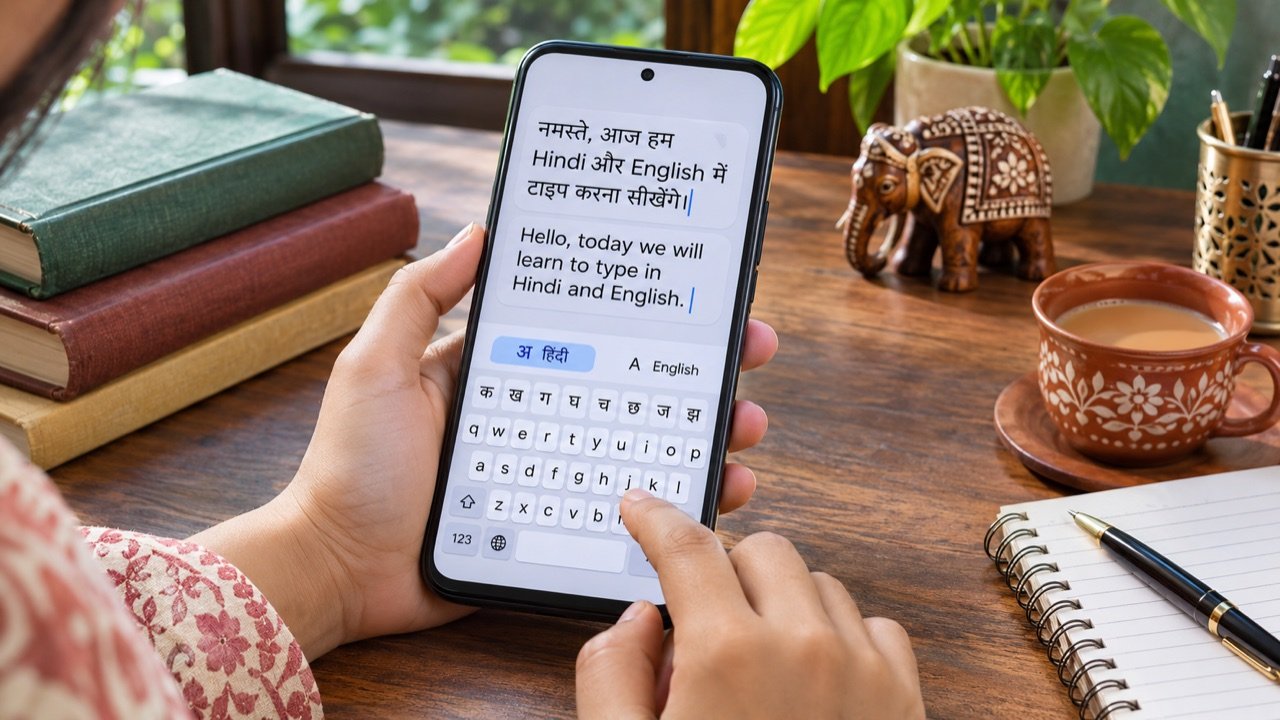
How to Type in Hindi on Android with Gboard: A Practical India Guide
Type Hindi while keeping your phone menus in English To type Hindi on an Android phone with Gboard, open a text field, tap the keyboard’s settings icon, choose Languages → Add keyboard, and select Hindi. Pick the available layout that suits how you want to type, then tap Done. Hold the space bar to switch […]
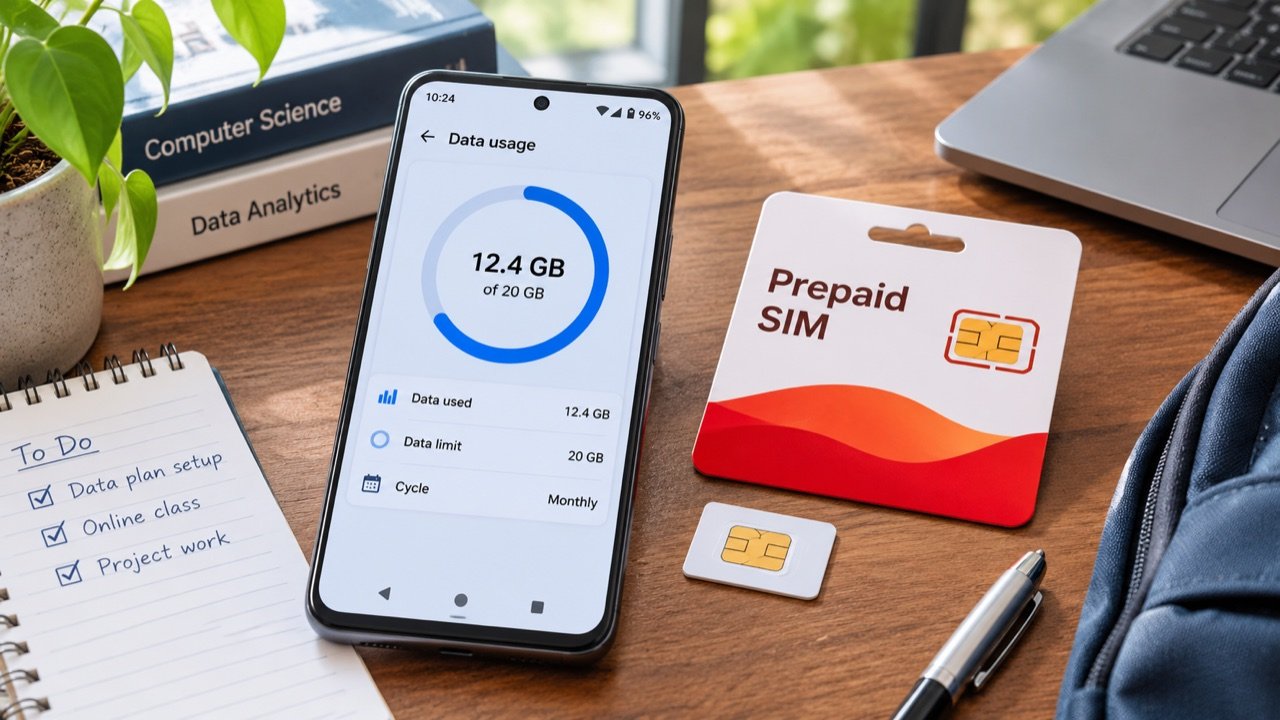
How to Use Android Data Saver in India Without Missing Important Alerts
Make your daily mobile data allowance last longer To reduce mobile data use on an Android phone in India, first check which apps consumed your allowance, then enable Data Saver and adjust the highest-usage apps individually. On phones with Google’s standard Android menus, the setting is under Settings → Network & internet → Data Saver. […]