How to Safely Install an APK on Android (Step-by-Step, 2026)
Learn how to install an APK on Android safely in 2026 — a step-by-step guide for India covering official sources, permissions and avoiding unsafe files.


Knowing how to install an APK on Android safely is a useful skill, but it comes with real responsibility — an APK from the wrong source can put your phone and data at risk. This step-by-step guide shows the safe way to do it, when it is appropriate, and how to protect yourself. If you are new to the term, start with our guide on what an APK file is.
Before You Install: Use Official Sources Only
The single most important rule when you install an APK on Android is to use only official sources. For nearly every app, that means the Google Play Store, which installs and verifies the APK for you automatically. Only consider a direct APK if it comes straight from the developer’s official website. Never download APKs from random “free download” sites offering modded or cracked apps.
How to Install an APK on Android: Start With the Official Website
If a legitimate developer offers a direct APK, download it only from their verified official domain. Check the web address carefully, look for HTTPS, and be suspicious of sites crowded with pop-ups and fake download buttons. When in doubt, use the Play Store instead.
Step 2: Enable “Install Unknown Apps” for One Source
Android blocks installs from outside the Play Store by default. To allow a specific app (like your browser) to install an APK, you grant it permission in Settings. We explain exactly how to do this carefully in our guide on enabling “Install unknown apps” safely, and importantly, how to turn it back off afterward.
Step 3: Scan and Verify Before Installing
Before tapping install, it is wise to check the file. Google Play Protect can scan sideloaded apps, and you can verify the file’s source and signature. Our guide on how to check an APK for malware before installing walks through simple checks anyone can do.
Step 4: Review the Permissions
During or after installation, review what permissions the app requests. A calculator app asking for your contacts and location is a red flag. Understanding permissions protects your privacy — see our explainer on Android app permissions and what you should allow.
Step 5: Keep the App Updated Safely
Apps installed outside the Play Store often will not auto-update, which can leave security holes. Whenever possible, move to the Play Store version so updates are automatic, or check the developer’s official site for new releases. Our guide on updating apps without the Play Store covers this safely.
Ultimately, learning how to install an APK on Android is less about the taps and more about the source you trust before you begin.
Conclusion
Learning how to install an APK on Android safely comes down to discipline: official sources only, review permissions, scan before installing, and disable “unknown apps” access when you are done. For the vast majority of users, the Play Store remains the safest and simplest option. Handle direct APKs rarely, carefully, and never from sites offering cracked or modified apps.
Tags:
More from TechLein Editorial Team
View all articles →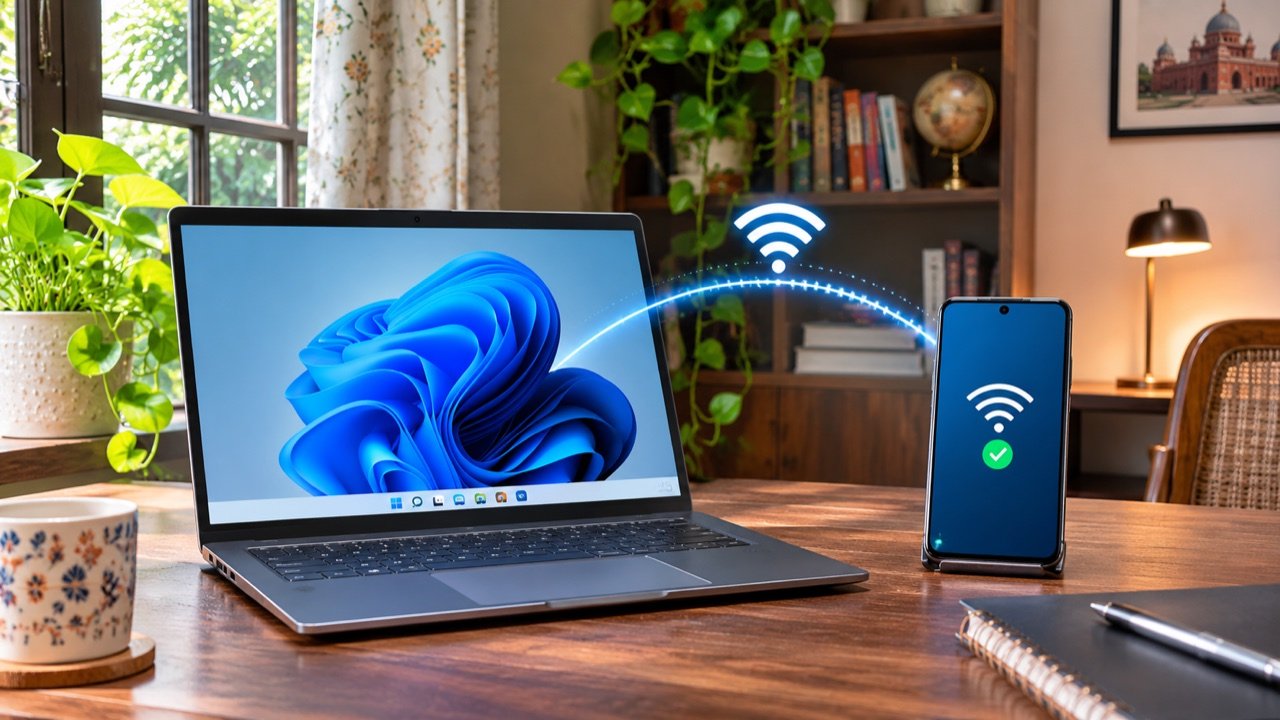
How to Set Up a Windows 11 Mobile Hotspot in India
A Windows mobile hotspot lets your laptop share its internet connection with a phone or another nearby device. It can be useful in an Indian hostel with Ethernet access, a home office with a wired connection, or a temporary workspace where you need to connect a second device. The laptop becomes the local access point; […]

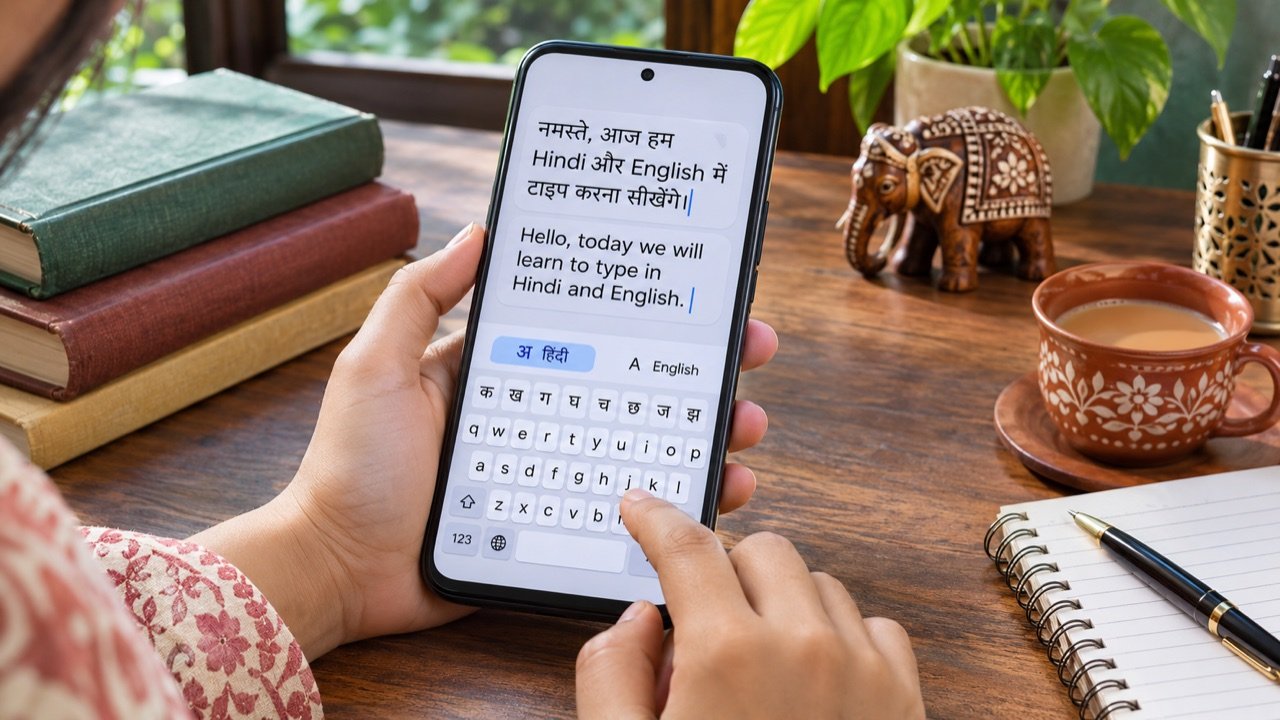
How to Type in Hindi on Android with Gboard: A Practical India Guide
Type Hindi while keeping your phone menus in English To type Hindi on an Android phone with Gboard, open a text field, tap the keyboard’s settings icon, choose Languages → Add keyboard, and select Hindi. Pick the available layout that suits how you want to type, then tap Done. Hold the space bar to switch […]
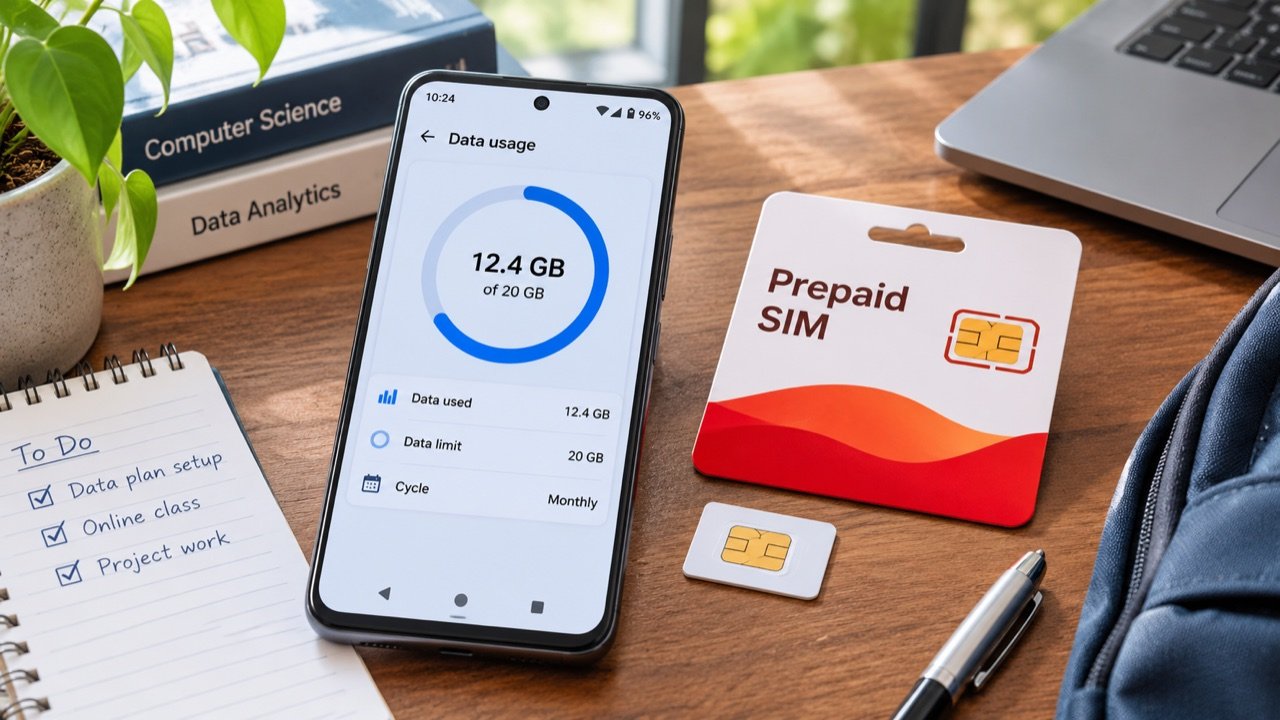
How to Use Android Data Saver in India Without Missing Important Alerts
Make your daily mobile data allowance last longer To reduce mobile data use on an Android phone in India, first check which apps consumed your allowance, then enable Data Saver and adjust the highest-usage apps individually. On phones with Google’s standard Android menus, the setting is under Settings → Network & internet → Data Saver. […]