OneDrive Sync vs Backup: Free Laptop Space Without Losing Files
Understand OneDrive deletion, Files On-Demand and independent backups. Use a small restore test before cleaning up important folders.

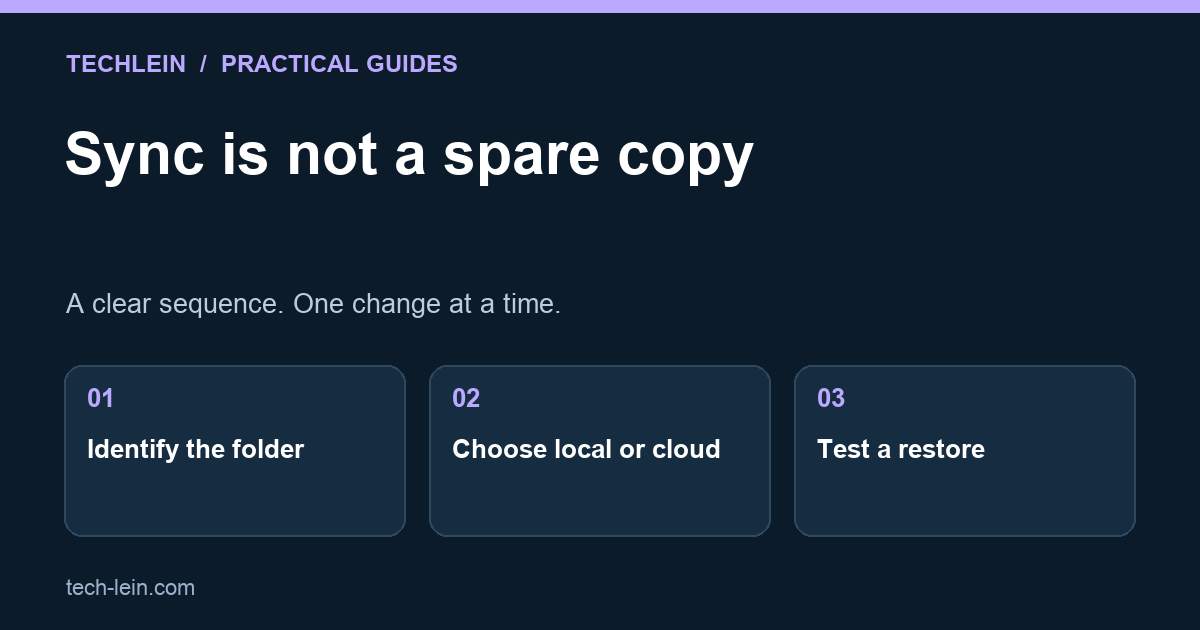
Seeing a file on two computers does not necessarily mean you have two independent backups. If both computers synchronize the same OneDrive folder, a deletion can travel between them. Before cleaning a full laptop, decide whether you want to remove a local download, remove the cloud file, or preserve a separate archive.
Quick answer: use OneDrive’s space-saving controls when you want the cloud copy to remain. Do not press Delete merely because you want a file to stop occupying local disk space. Keep a separate, tested copy of anything you cannot afford to lose.
Choose the action that matches your goal
| Goal | Approach | Check afterwards |
|---|---|---|
| Reduce local disk use | Make a synced file online-only with Files On-Demand. | It still appears and opens through OneDrive online. |
| Work without internet | Keep the needed folder downloaded locally. | Open a sample file while offline. |
| Remove an unwanted cloud file | Delete deliberately, understanding synchronization. | Confirm the correct item was removed. |
| Keep an independent archive | Copy required files to a separate backup destination. | Open and restore samples from that destination. |
Microsoft confirms that deleting a OneDrive file and making it online-only are different operations. An online-only file can still be deleted from the cloud if you delete its entry in File Explorer. Read Files On-Demand before changing a large folder.
Map the folder before touching it
Open the folder’s location and identify the account attached to OneDrive. Personal and work accounts can coexist. A familiar folder name such as Documents is not enough to identify which account owns it. Check the sync status and resolve errors before assuming all recent work reached the cloud.
Then sign in to OneDrive in a browser and inspect a recent file. Confirm its name, contents and modification time. This is a stronger check than looking at a cloud icon alone. For a large project, sample several file types: the document, its images, and any spreadsheet it depends on.
Use a harmless rehearsal
- Create a small test document with a unique name in the intended folder.
- Wait for synchronization and open it through the web interface.
- Use the local space-saving action on that test file.
- Open it again online, then download it if you need an offline copy.
- Only apply the same workflow to real files after the outcome matches your goal.
Example: a student has a full SSD and a 20 GB course folder. If the next trip has unreliable internet, making the whole folder online-only solves storage pressure but creates an access problem. Keep next week’s readings local and move older material online-only after verification. Storage cleanup should reflect how the files will be used.
Add a recovery path that sync cannot erase
For irreplaceable work, maintain a separate backup and a way to restore it. Decide what it covers, where it lives, how often it runs and who can access it. A disconnected external drive can be one component; it still needs protection against loss and damage. Do not treat an untested folder named “Backup” as proof.
Try restoring one sample into a temporary folder, rather than overwriting current work. Check that the recovered document opens and that associated files are present. Record the date of the test and the backup date. This simple distinction exposes backups that exist but are too old to be useful.
What if you already deleted something?
Check OneDrive’s web recycle bin promptly and avoid emptying it while investigating. Recovery options depend on account type and how the item was removed. Microsoft provides file restoration instructions and explains deletion behaviour. Keep any surviving copy safe before trying broad cleanup or rollback operations.
Related TechLein guides
- How to Free Up Storage on a Full Laptop Without Deleting Anything You Need
- How to Recover Deleted Files on Windows in 2026 (Free Methods That Work)
Editorial note: This guide was prepared with AI assistance and checked against the official documentation linked above on 27 October 2026. The troubleshooting examples are illustrative, not claims of hands-on product testing. Menus and available features can vary by device and software version.
Tags:
More from TechLein Editorial Team
View all articles →Laptop Stand vs Cooling Pad: Evaluate Airflow Before Buying
Compare a laptop stand and active cooling pad for ventilation, desk space and noise. Establish a baseline and avoid unsupported temperature claims.

Wired vs Bluetooth vs USB Receiver Mouse: A Workday Comparison
Compare mouse connection types for ports, pairing, power and travel. Use a task-based checklist and check exact model support before buying.
Android Unused Apps: Review Permissions Before Removing Anything
Review unused Android apps, paused activity and permissions before uninstalling. Protect local files and account access while deciding what to keep.