Microphone Not Working in Chrome on Windows 11? Test These Three Layers
Find out whether a silent microphone is caused by the device, Windows privacy settings or Chrome site permissions before reinstalling anything.

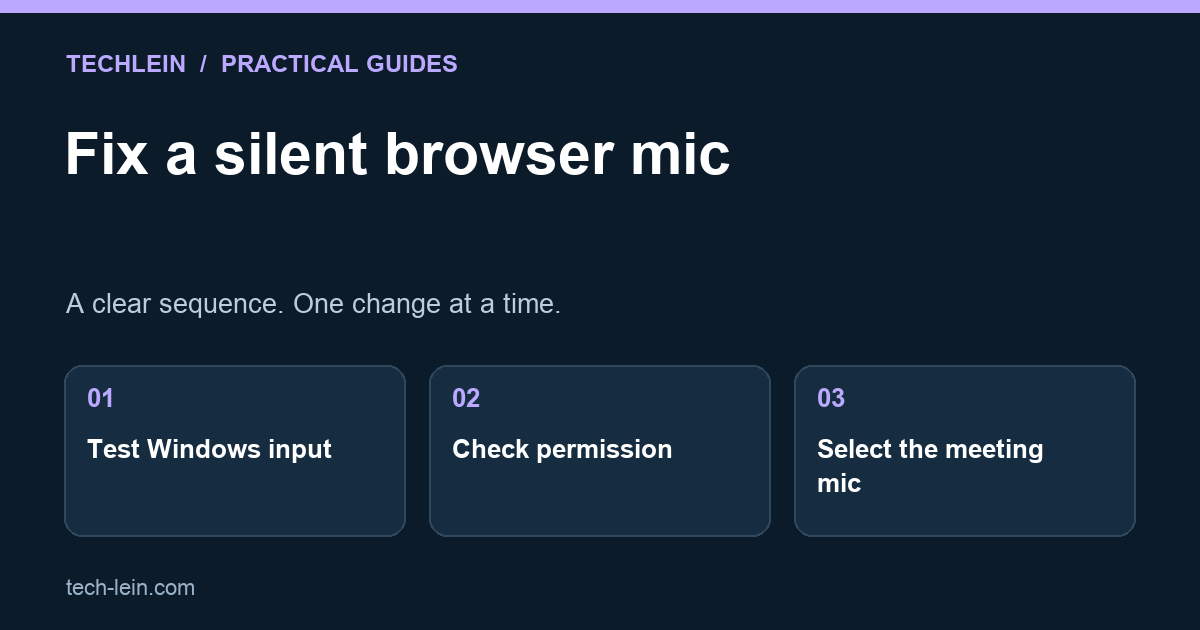
A microphone can work in one application and stay silent in a browser call. That usually means the problem needs to be located, not that every audio driver should be reinstalled. Separate the physical input, Windows access and the website’s own settings.
Quick answer: test the microphone in Windows first. If that works, check whether Chrome and the intended meeting site have access, then select the same microphone inside the call. Use a private test before joining an important meeting.
Which layer is failing?
| Test result | Investigate next |
|---|---|
| Windows cannot record the microphone | Connection, physical mute, selected input and device support. |
| Windows test works; every Chrome call fails | Windows permissions for desktop apps and Chrome’s microphone configuration. |
| Only one website fails | That site’s permission and its in-meeting audio selection. |
| Others hear you, but you hear nothing | Output-device settings; this is not an input-only problem. |
1. Establish a working input
Check the headset’s physical mute switch and connection. Open Windows Settings, then System and Sound. Choose the intended device under Input and use its test control. Speak a short, non-sensitive sentence and listen to the sample where the option is available. Microsoft’s microphone testing guide describes this workflow.
When several microphones appear, their names may refer to a webcam, laptop, headset or monitor. Note the exact one that works. Keep the same device connected for the next stage so the test remains comparable.
2. Check Windows and Chrome access
In Windows Privacy & security settings, inspect Microphone access and the controls for applications. Desktop applications such as browsers use the relevant desktop-app permission, which differs from individual Microsoft Store app toggles. Follow Microsoft’s microphone-permission instructions.
Then inspect Chrome’s microphone settings under Privacy and security, Site settings. Check the selected microphone and whether the specific meeting website is blocked. Permit access only for a site you recognize and intend to use. Google’s camera and microphone guide explains site exceptions and default input selection.
On an employer-managed device, an administrator may control these settings. Ask IT to resolve the policy; do not attempt to bypass it. You also do not need to grant camera access just to investigate a microphone-only problem.
3. Select the input inside the meeting
- Reload the meeting page after an appropriate permission change.
- Open the service’s pre-call audio settings.
- Select the same microphone that passed the Windows test.
- Check the call’s mute control separately from the headset switch.
- Use the service’s test or preview feature, or a short agreed test call.
Example: Windows records the laptop microphone correctly, but the meeting has remembered a disconnected USB webcam as its input. Changing permissions repeatedly will not select the missing hardware. Choosing the working laptop microphone in the meeting resolves the mismatch you actually identified.
If it still fails
Close unnecessary calling or recording applications and test again. Check whether the issue affects one website, one browser profile or every recording application. Keep a concise log of the device name, Windows test result and the exact error shown.
If Windows itself cannot use the microphone, consult the laptop or headset manufacturer’s support information and official driver source. If Windows works but a particular service does not, its support team needs the browser and site-level results. Avoid changing multiple privacy controls, resetting the whole browser or uploading private recordings before you know which layer needs attention.
Does hearing audio prove the microphone works?
No. Speaker output and microphone input are separate choices. A headset can play a meeting while the website records a different input, or none at all. Test both directions before an interview, class or client call.
Related TechLein guides
- New Laptop Setup Checklist 2026: 15 Things to Do in the First Hour
- How to Protect Your Privacy Online in India (2026): DPDP Act, Apps and Your Data
Editorial note: This guide was prepared with AI assistance and checked against the official documentation linked above on 27 October 2026. The troubleshooting examples are illustrative, not claims of hands-on product testing. Menus and available features can vary by device and software version.
Tags:
More from TechLein Editorial Team
View all articles →Laptop Stand vs Cooling Pad: Evaluate Airflow Before Buying
Compare a laptop stand and active cooling pad for ventilation, desk space and noise. Establish a baseline and avoid unsupported temperature claims.

Wired vs Bluetooth vs USB Receiver Mouse: A Workday Comparison
Compare mouse connection types for ports, pairing, power and travel. Use a task-based checklist and check exact model support before buying.
Android Unused Apps: Review Permissions Before Removing Anything
Review unused Android apps, paused activity and permissions before uninstalling. Protect local files and account access while deciding what to keep.