Chrome Extension Permissions: A Practical 15-Minute Audit
Review Chrome extensions by purpose and site access. Remove unused tools, narrow permissions and identify problems without breaking essential workflows.

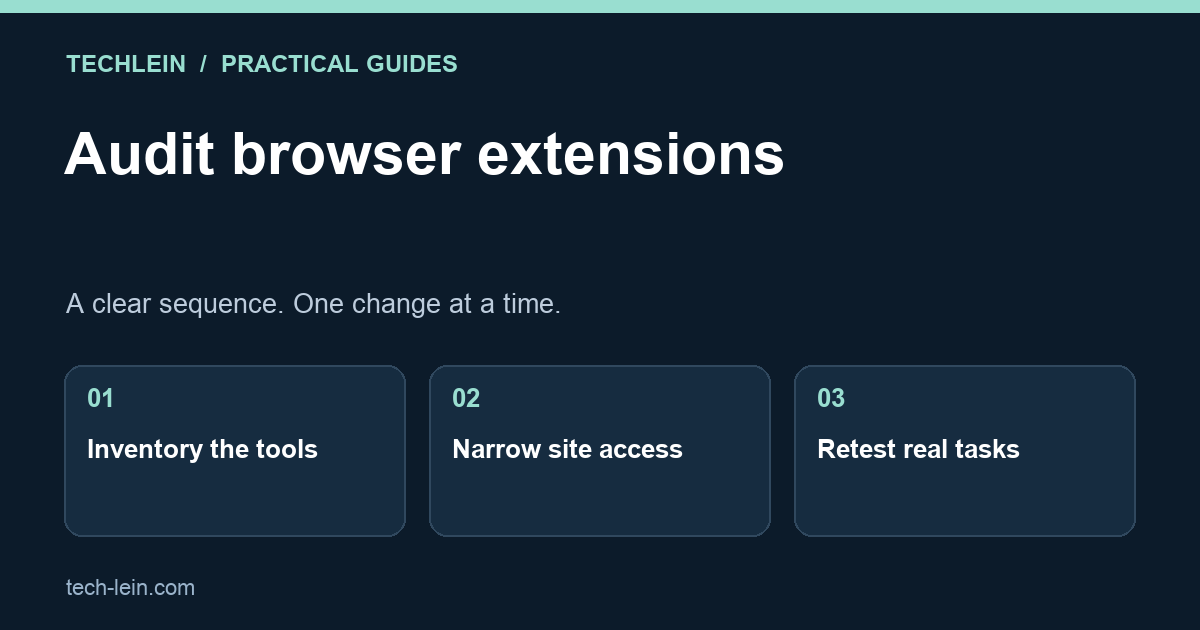
A browser extension can be useful and still have more access than your current work requires. The right question is not simply whether it has good ratings. Ask what it does, which sites it can touch, and whether you still need it.
Quick answer: inventory your extensions, remove tools you no longer use, and restrict site access where that fits their function. Test important tasks after each change. A permissions review reduces unnecessary access; it does not certify that an extension is harmless.
Build a short inventory
Open Chrome’s menu, go to Extensions, then the extension-management page. For each tool, record its name, publisher, reason for installation and last useful task. Check the details screen instead of relying on the toolbar icon, because not every installed extension is pinned.
| Example tool | Reasonable review question |
|---|---|
| Screenshot helper | Does it need continuous access, or only when you invoke it? |
| Grammar assistant | Should it run on every site, including private dashboards? |
| Price comparison add-on | Do you still use it, and is access limited to relevant shopping sites? |
| Work security extension | Is it managed by your organization, and who supports it? |
These are questions, not verdicts about particular products. A tool’s purpose determines which permissions make sense. Google’s extension permission reference explains why access requests deserve attention.
Separate site access from other permissions
For compatible extensions, Chrome offers access choices tied to invocation, specific sites or all sites. The extension’s details page shows the available controls. Some VPN or proxy-related capabilities are not restricted by ordinary site-access changes, so narrowing that one setting is not a universal privacy shield. See Chrome’s extension-management instructions.
- Choose one non-essential extension to review first.
- Read its purpose and requested permissions together. Note anything you cannot explain.
- If it is no longer useful, remove it. If it is useful occasionally, try a more limited site-access option where supported.
- Reload the relevant page and repeat the task you normally use it for.
- If the task fails, investigate the specific permission needed instead of immediately granting access everywhere.
An example audit that avoids guesswork
Imagine you installed a coupon extension for a purchase six months ago. Your current browser is mainly for email, coursework and client dashboards. Start by asking whether the shopping feature is still used. If not, removal is simpler than maintaining exceptions for a forgotten tool.
For a writing assistant you use daily, the decision is different. You might keep it available on a publishing site while declining its use on sensitive account pages. Test with a harmless sentence, not confidential client material. Document the result so you remember why the setting changed.
What to do when an extension behaves strangely
If a page breaks, reproduce the problem with the suspected optional extension off and then on, without changing several extensions together. A change in behaviour is evidence to investigate, not proof of malware. Check the publisher’s support information and recent update notes.
If Chrome says an extension is managed, do not try to bypass an employer’s controls. Contact the administrator. If an extension returns after removal on a personal computer, or settings keep changing, investigate device security and software installed outside the browser. Avoid downloading another unknown “cleaner” extension as a shortcut.
How often should you repeat the audit?
Review the list when you install a new tool, change jobs or notice unexpected browser behaviour. A quarterly calendar reminder can also be useful. Keep the record small: extension, purpose, allowed sites and test result. The aim is an understandable browser setup, not a perfect-looking permission list that prevents you from working.
Related TechLein guides
- How to Protect Your Privacy Online in India (2026): DPDP Act, Apps and Your Data
- How to Stay Safe Online in India (2026): The Complete Cyber Safety Guide
Editorial note: This guide was prepared with AI assistance and checked against the official documentation linked above on 27 October 2026. The troubleshooting examples are illustrative, not claims of hands-on product testing. Menus and available features can vary by device and software version.
Tags:
More from TechLein Editorial Team
View all articles →Laptop Stand vs Cooling Pad: Evaluate Airflow Before Buying
Compare a laptop stand and active cooling pad for ventilation, desk space and noise. Establish a baseline and avoid unsupported temperature claims.

Wired vs Bluetooth vs USB Receiver Mouse: A Workday Comparison
Compare mouse connection types for ports, pairing, power and travel. Use a task-based checklist and check exact model support before buying.
Android Unused Apps: Review Permissions Before Removing Anything
Review unused Android apps, paused activity and permissions before uninstalling. Protect local files and account access while deciding what to keep.