Change the Default PDF App in Windows 11 and Test It
Choose which app opens PDF files in Windows 11, test a local document and separate Windows file associations from browser download preferences.

To change the default PDF app in Windows 11, update the file association and then test a local file. Browser download behavior and an app’s editing capabilities are separate choices. Opening PDFs in a different program will not automatically add features that program does not support.
Pick an installed, trusted app
Decide whether you mainly need to read, annotate, fill forms or sign documents. Check those functions in the app you already have before installing another viewer. For work documents, follow the organization’s approved software and storage requirements.
Change the PDF association
Microsoft’s default-app instructions describe assigning apps by file extension or application. Open Settings, choose Apps and then Default apps. Search for .pdf, select the matching entry and choose the intended installed application from the available options.
- Save any documents you are editing.
- Change the .pdf association in Default apps.
- Open File Explorer and locate a known local PDF.
- Open it normally and confirm which app starts.
- Test the one feature you actually need, such as printing or adding a note.
If the app is not listed, confirm it is properly installed and supports PDF files. Do not force an unrelated executable through an unfamiliar association workaround. A managed computer may restrict defaults or available software; record the behavior for its administrator.
Distinguish downloads from local files
A browser can show a PDF inside a tab even when Windows has a different default for files opened from File Explorer. First test the saved local file. Then review the browser’s PDF or download settings if the remaining issue occurs only when clicking a web link.
| What happens | Where to investigate |
|---|---|
| Local PDF opens in the wrong app | Windows .pdf default |
| Website PDF stays in a tab | Browser PDF behavior |
| File opens but cannot be edited | App features and document permissions |
Test without risking an original
Use a copy of a non-sensitive PDF for annotation or form testing. Save the result under a new name and reopen it to confirm the change persists. Check printing separately if that is part of your workflow; a correct viewer association does not diagnose a printer problem.
For creating readable files, see our iPhone document-scanning guide. For output problems, use the Windows printer checklist.
Tags:
More from TechLein Editorial Team
View all articles →
How to Set Up a Windows 11 Mobile Hotspot in India
A Windows mobile hotspot lets your laptop share its internet connection with a phone or another nearby device. It can be useful in an Indian hostel with Ethernet access, a home office with a wired connection, or a temporary workspace where you need to connect a second device. The laptop becomes the local access point; […]

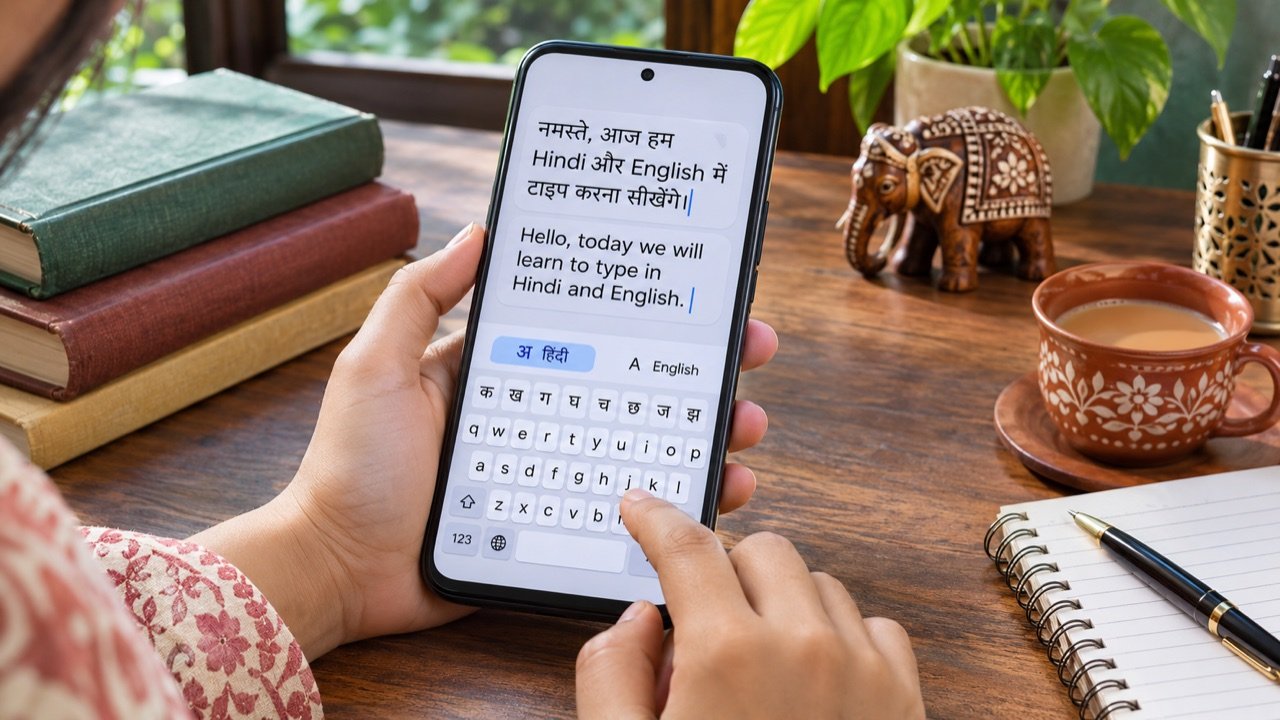
How to Type in Hindi on Android with Gboard: A Practical India Guide
Type Hindi while keeping your phone menus in English To type Hindi on an Android phone with Gboard, open a text field, tap the keyboard’s settings icon, choose Languages → Add keyboard, and select Hindi. Pick the available layout that suits how you want to type, then tap Done. Hold the space bar to switch […]
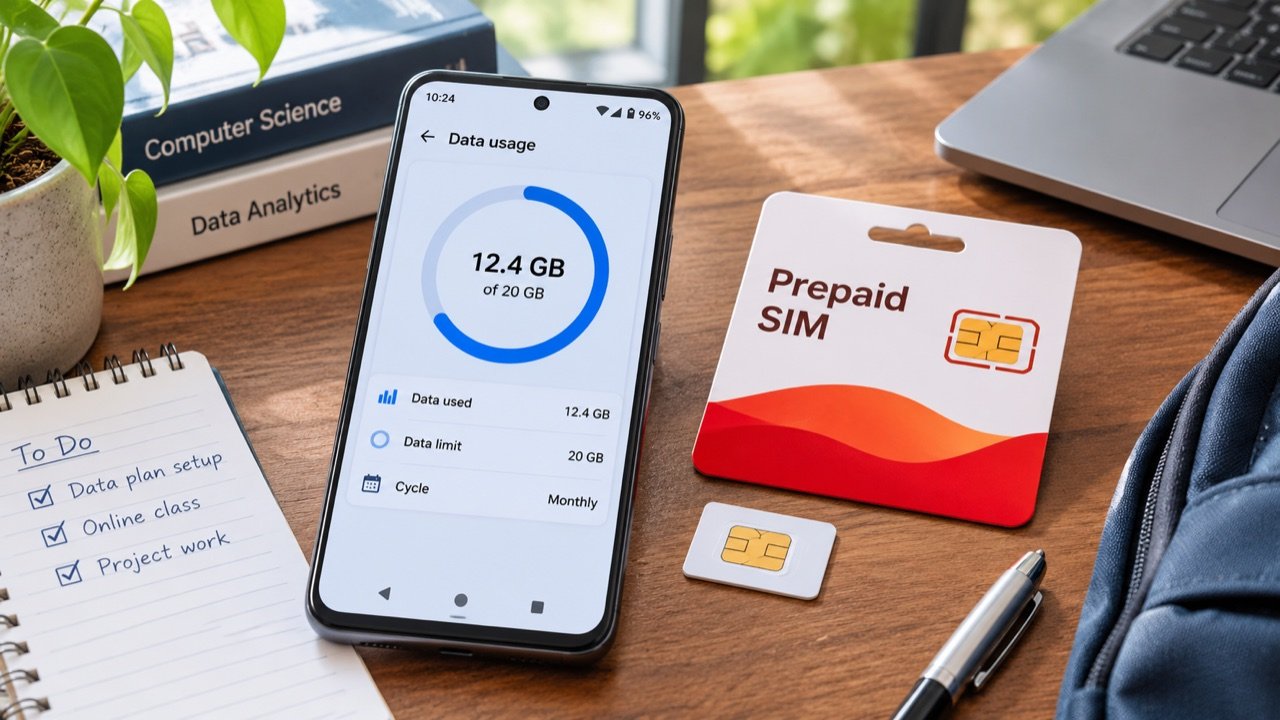
How to Use Android Data Saver in India Without Missing Important Alerts
Make your daily mobile data allowance last longer To reduce mobile data use on an Android phone in India, first check which apps consumed your allowance, then enable Data Saver and adjust the highest-usage apps individually. On phones with Google’s standard Android menus, the setting is under Settings → Network & internet → Data Saver. […]