Bluetooth Headphones Connected but No Sound on Windows 11
Trace Bluetooth audio problems from output selection to per-app volume and call mode. Test headphones methodically before replacing hardware.

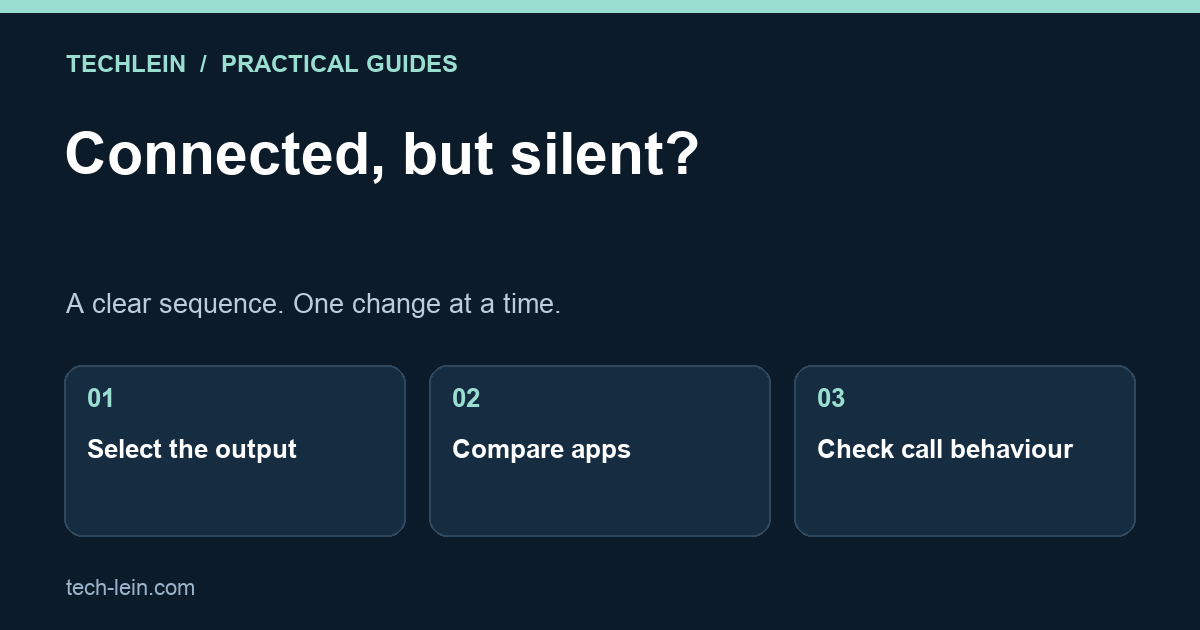
“Connected” in Bluetooth settings confirms a connection, not that Windows is sending the audio you want to hear to that device. A video, meeting and game can also use different audio selections. Start by isolating the silent path.
Quick answer: check the headphone volume, Windows output device and the affected application’s audio selection. Compare a simple audio source with the troublesome app before removing the device or installing drivers.
Create a simple baseline
- Charge the headphones and check their physical volume or mute controls.
- Open Windows Settings, System, Sound and select the headphones as the intended output.
- Play a familiar, non-sensitive local audio sample or another source you know works.
- Check the system volume and the relevant application’s volume or output controls.
- If the headphones also connect to another device, check the manufacturer’s instructions for which device currently owns audio playback.
Microsoft lists output selection, pairing, drivers and compatibility among the checks in its connected-but-silent troubleshooting guide. There is no need to perform every possible reset before finding out whether ordinary playback works.
Use the result to choose the next step
| Result | Likely area to investigate |
|---|---|
| All playback is silent | Output selection, volume, connection and device support. |
| Music works; one meeting is silent | The meeting’s speaker selection and volume. |
| Sound changes when the microphone activates | Call-mode behaviour and supported Bluetooth audio features. |
| Same headphones fail on another device | Headphone settings, firmware or hardware. |
These observations guide the investigation; they do not prove a single cause. A second-device test is particularly useful when performed with the same headphones at a similar volume. Record what changed instead of buying a replacement based on one application’s failure.
Why calls can sound different from music
Using a headset microphone can change the available audio behaviour. Windows support for higher-quality simultaneous playback and microphone use depends on compatible PC hardware, headphones, drivers and software. Microsoft documents these requirements for Bluetooth LE Audio quality settings.
Do not assume that a high Bluetooth version number alone guarantees the feature. Microsoft’s LE Audio support check helps establish what the PC actually supports. If a setting described in a guide is absent, verify compatibility instead of hunting for an unofficial registry fix.
Example: music is clear until a browser meeting starts using the headset microphone. Compare the meeting with the laptop microphone selected as input while retaining the headphones as output. If playback behaviour changes, that is evidence about the simultaneous input/output path. It is a test, not a promise that every headset supports the same modes.
Recover the connection in a sensible order
If output choices are correct but playback remains broken, restart the affected app and then the computer as appropriate. Use Windows’ built-in Bluetooth help. If you remove and re-pair the headset, have its pairing instructions ready; some products require a specific button sequence.
Next, check Windows Update and the PC or headphone manufacturer’s official support page. Match the exact model when reviewing drivers or firmware. Avoid paid driver-updater pop-ups and random download mirrors. On a managed laptop, involve IT before changing system components.
Should you reset every Bluetooth device?
No. Keep the intervention proportional to the evidence. A mouse and keyboard that work normally do not need to be removed because one meeting app selected the wrong speaker. Finish by testing ordinary playback and a short call separately, then record the working input and output choices for next time.
Related TechLein guides
- How to Speed Up Windows 11: Settings That Make a Real Difference
- New Laptop Setup Checklist 2026: 15 Things to Do in the First Hour
Editorial note: This guide was prepared with AI assistance and checked against the official documentation linked above on 27 October 2026. The troubleshooting examples are illustrative, not claims of hands-on product testing. Menus and available features can vary by device and software version.
Tags:
More from TechLein Editorial Team
View all articles →Laptop Stand vs Cooling Pad: Evaluate Airflow Before Buying
Compare a laptop stand and active cooling pad for ventilation, desk space and noise. Establish a baseline and avoid unsupported temperature claims.

Wired vs Bluetooth vs USB Receiver Mouse: A Workday Comparison
Compare mouse connection types for ports, pairing, power and travel. Use a task-based checklist and check exact model support before buying.
Android Unused Apps: Review Permissions Before Removing Anything
Review unused Android apps, paused activity and permissions before uninstalling. Protect local files and account access while deciding what to keep.