Guest Wi-Fi Setup: Check Isolation Before Connecting Smart Devices
Set up guest Wi-Fi with a practical isolation check. Understand router versus access-point mode and avoid breaking printers, casting and smart-home control.

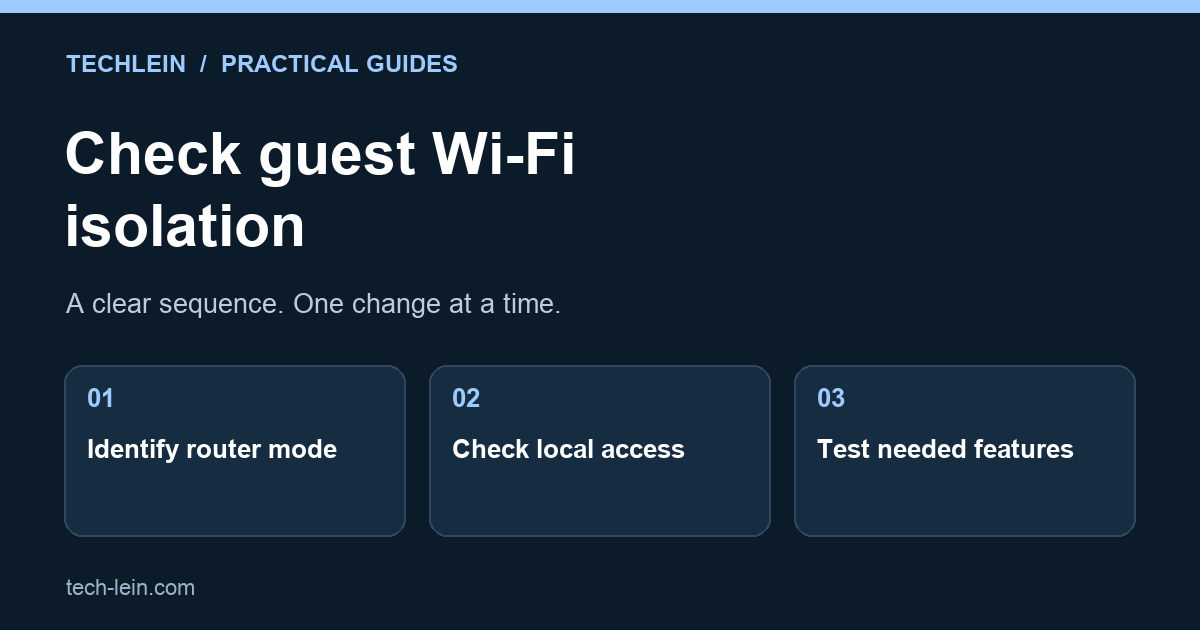
A second Wi-Fi name is convenient for visitors, but its name alone does not prove that devices are separated from your main network. Router mode, access-point mode and local-access settings can change the result. This matters when moving cameras, smart plugs or guests’ laptops onto a guest network.
Quick answer: check your exact router model and operating mode, enable the intended guest isolation controls, and test both internet access and the local features you need. Do not assume an “IoT” label automatically means isolation.
Three different boundaries
| Boundary | Question it answers |
|---|---|
| Guest-to-main isolation | Can a guest reach devices on the primary home network? |
| Guest-to-guest isolation | Can two devices on the guest network communicate with each other? |
| Internet access | Can that device reach services outside the home? |
These controls are not interchangeable. A camera that needs a cloud service may require internet access without needing access to your laptop. A local printer may need communication with your computer but not with visitors’ phones. Write down the intended behaviour first.
Check the operating mode
TP-Link’s Deco documentation, for example, says its guest and main networks are isolated in Router mode; in Access Point mode an available local-access control determines separation. Features vary by model and firmware. Consult the Deco guest-network instructions for the applicable product, not a screenshot from a different router.
Other TP-Link product families can behave differently in access-point mode, as illustrated by its router-versus-access-point explanation. This is a reason to verify the exact model, not to assume every product has the same switch. An ISP-supplied router may also limit which controls you can change.
Set up deliberately
- Identify the device doing routing and the hardware providing Wi-Fi. In a mesh setup, these may be part of the same system.
- Open its official app or management interface using the manufacturer’s instructions. Record the current mode and relevant guest settings.
- Create a distinct guest network name and a strong, separate Wi-Fi password. Use the strongest security mode compatible with the devices you intend to connect.
- Review any controls for access to the local network and communication among guests. Choose the intended restrictions.
- Move one non-critical device first. Do not move all cameras, printers and smart-home controllers at once.
Test behaviour, not just a connected icon
On a device you own, confirm that ordinary websites load on the guest network. Then check whether a known local resource on the main network remains reachable in a way that should be blocked. Use only your own devices and management pages; broad network scanning is unnecessary for this household check.
If you do not know a resource’s address or whether it normally responds, a failed attempt proves little. Compare with a successful test from the main network first. Even then, a simple test is a practical check rather than a complete security assessment. For stronger assurance, rely on documented capabilities or qualified help.
Example: after moving a TV to guest Wi-Fi, streaming apps still work but phone casting disappears. That can be consistent with local discovery being separated. Decide whether the TV and casting phone should share an appropriate network. Do not turn off every isolation setting simply to recover one convenience.
What if a smart device will not connect?
Check its supported Wi-Fi bands, security modes and setup requirements in the manufacturer’s guide. Some devices require the setup phone to reach them locally. Resolve that requirement deliberately, then recheck the final arrangement. If the router cannot provide the boundaries you need, keep the limitation documented rather than calling the setup “secure” because the network has a different name.
Related TechLein guides
- Why Your Wi-Fi Is Slow and How to Fix It Room by Room
- How to Connect a Wireless Printer to Windows 11 (2026 Setup Guide)
Editorial note: This guide was prepared with AI assistance and checked against the official documentation linked above on 27 October 2026. The troubleshooting examples are illustrative, not claims of hands-on product testing. Menus and available features can vary by device and software version.
Tags:
More from TechLein Editorial Team
View all articles →Laptop Stand vs Cooling Pad: Evaluate Airflow Before Buying
Compare a laptop stand and active cooling pad for ventilation, desk space and noise. Establish a baseline and avoid unsupported temperature claims.

Wired vs Bluetooth vs USB Receiver Mouse: A Workday Comparison
Compare mouse connection types for ports, pairing, power and travel. Use a task-based checklist and check exact model support before buying.
Android Unused Apps: Review Permissions Before Removing Anything
Review unused Android apps, paused activity and permissions before uninstalling. Protect local files and account access while deciding what to keep.