HEIC vs JPEG vs WebP: Choose a Format for Sharing and Keeping Photos
Compare HEIC, JPEG and WebP for photo compatibility, web delivery and keeping originals. Learn when to export a copy and why renaming a file will not convert it.

HEIC vs JPEG vs WebP is mainly a workflow decision: which format can the recipient open, what does the destination accept, and where will you keep the original? A smaller file is useful only if it preserves enough quality and works in the place you need it.
Keep the original before experimenting. Export a separate sharing copy, test that copy in its actual destination, and avoid repeatedly converting the same compressed image through several apps. This gives you a way back if a conversion changes quality, metadata or compatibility unexpectedly.
What the labels mean in practice
Apple documents HEIF media and conversion options, including exporting an image to a format such as JPEG or PNG in supported Mac apps. HEIC is a commonly encountered filename extension for HEIF images. Check the receiving app’s support rather than assuming every phone, browser or upload form accepts the same files.
| Format | Typical decision | Check before relying on it |
|---|---|---|
| HEIC/HEIF | Keeping an original from a supported capture workflow | Recipient and archive software compatibility |
| JPEG | A photo copy for a widely supported destination | Export dimensions and visible compression |
| WebP | Delivering images to a supported website or application | The complete publishing and editing workflow |
Separate an archive copy from a delivery copy
Your archive answers “What do I want to retain?” Your delivery copy answers “What works for this recipient?” These can be different files. A web-sized image suitable for a page is not automatically the best master for a future large print.
For example, keep the original photo in a backed-up library and export a smaller copy for a registration form. Name the export so it is easy to distinguish, then reopen it before uploading. If the form specifies a format and size limit, those requirements take priority over a general format preference.
WebP supports more than one compression approach
The WebP format specification covers its file structure, while MDN’s image-format guide explains common web-image choices. WebP supports both lossy and lossless workflows. That does not mean every exported WebP is smaller or better than every JPEG; content and export settings affect the result.
When comparing exports, use the same dimensions and inspect meaningful details: faces, fine lettering, gradients and edges. Compare the result in the app or browser that will display it. A file-size comparison with mismatched dimensions can produce a misleading conclusion.
Renaming a file is not conversion
Changing photo.heic to photo.jpg changes the name, not the encoded image. Use an app’s export or conversion function. If the new file will not open, keep the original and repeat the export using a supported format instead of trying more extensions.
- Check the destination’s accepted formats and limits.
- Export one test copy from a trusted image app.
- Open the exported file and inspect orientation, dimensions and important detail.
- Test it in the intended destination.
- Only then export the rest of the batch.
Review privacy and backup before sharing
A conversion can change metadata, but do not assume it removes location or other private details. Inspect the sharing controls and the exported file where your tools support that review. For sensitive documents, avoid uploading images to an unfamiliar conversion website merely for convenience.
If storage is your concern, first understand the difference between removing a local copy and deleting a library item. Our Google Photos cleanup guide covers that distinction. Use the backup comparison to protect originals before reorganizing a large photo collection.
Tags:
More from TechLein Editorial Team
View all articles →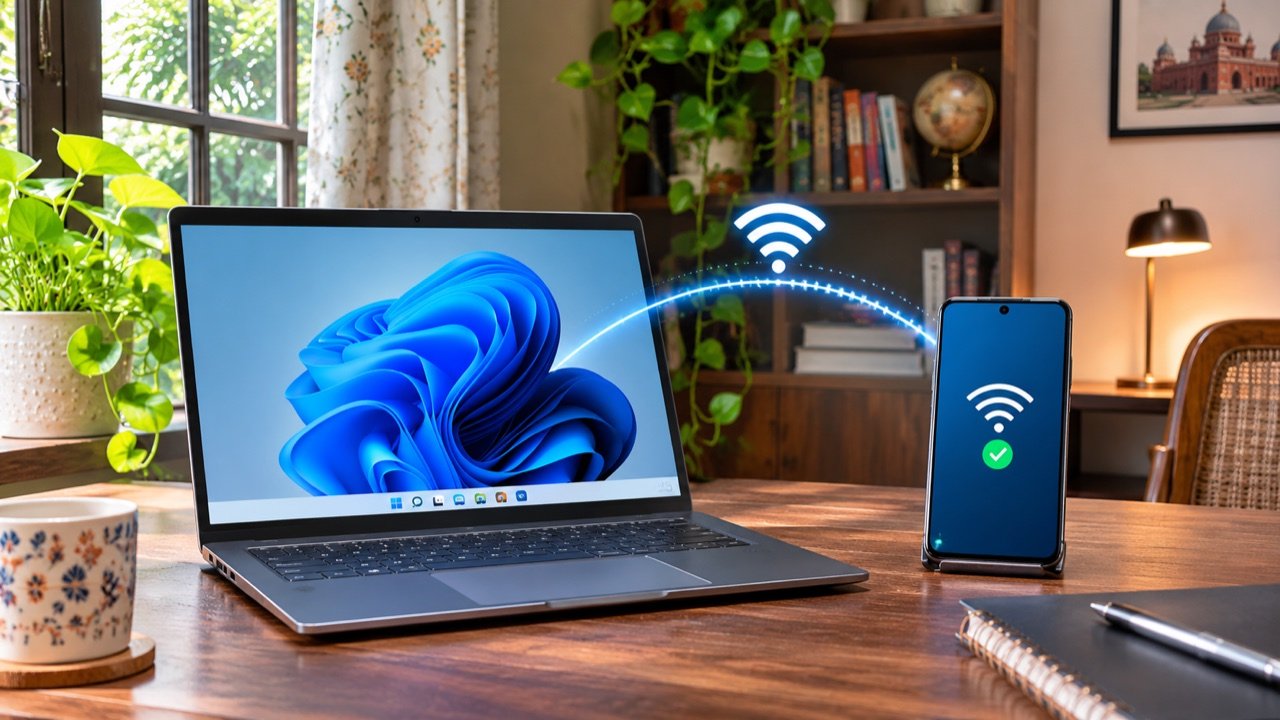
How to Set Up a Windows 11 Mobile Hotspot in India
A Windows mobile hotspot lets your laptop share its internet connection with a phone or another nearby device. It can be useful in an Indian hostel with Ethernet access, a home office with a wired connection, or a temporary workspace where you need to connect a second device. The laptop becomes the local access point; […]

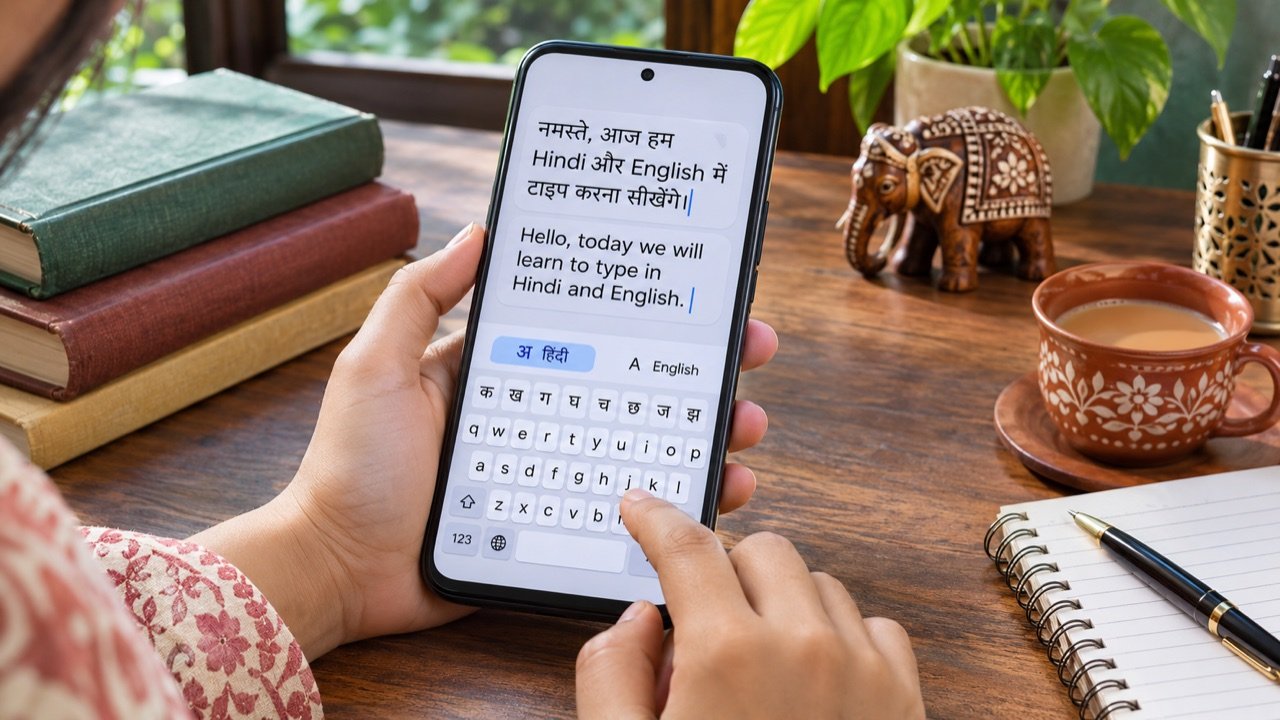
How to Type in Hindi on Android with Gboard: A Practical India Guide
Type Hindi while keeping your phone menus in English To type Hindi on an Android phone with Gboard, open a text field, tap the keyboard’s settings icon, choose Languages → Add keyboard, and select Hindi. Pick the available layout that suits how you want to type, then tap Done. Hold the space bar to switch […]
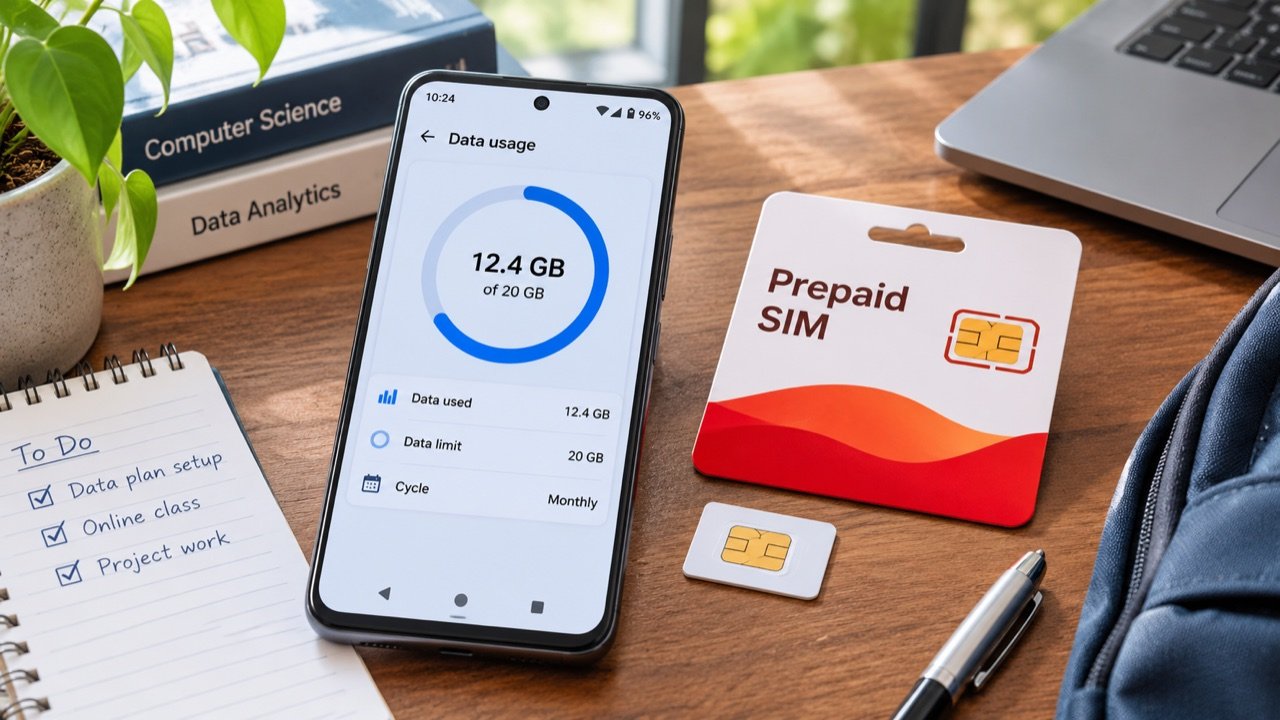
How to Use Android Data Saver in India Without Missing Important Alerts
Make your daily mobile data allowance last longer To reduce mobile data use on an Android phone in India, first check which apps consumed your allowance, then enable Data Saver and adjust the highest-usage apps individually. On phones with Google’s standard Android menus, the setting is under Settings → Network & internet → Data Saver. […]